

Help center
Run your hotel or lodge with Staywarden, one step at a time
From the morning briefing to your team’s hours: real screenshots of the panel, with a ring around the exact spot to tap. Every step says what to do — and why it works that way. On a phone, the tabs that are not in the bottom bar are under More.
Guides
Start the day on the Dashboard
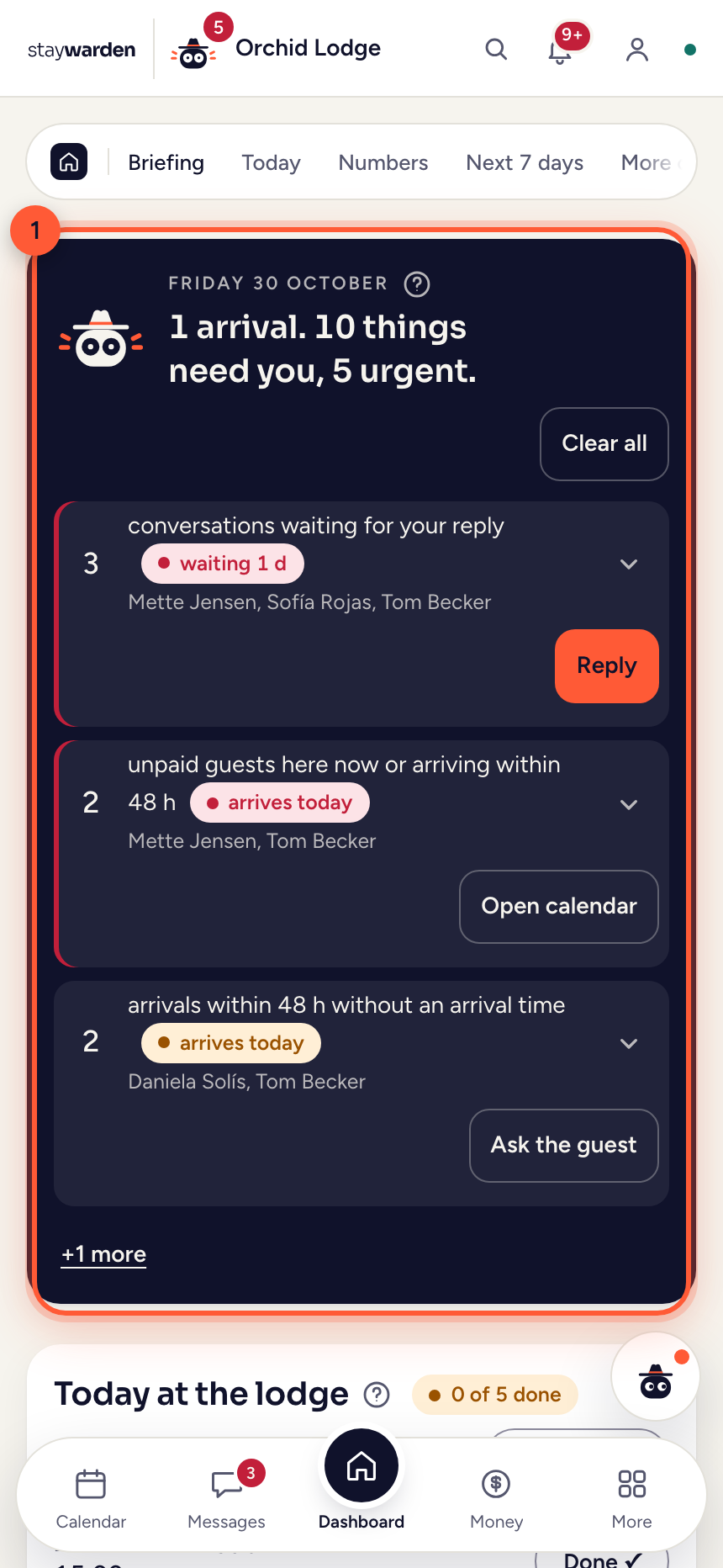
Open the panel and the day is already laid out: what needs you, who is where, and what the team still has to do.
 Step 1
At the top, the Warden’s briefing says what needs you today. Each line comes with the one button that handles it.
WhyIt’s built from your bookings, messages and payments each time you open the panel, most urgent first. When nothing is waiting, it says “Nothing needs you right now.”
 Step 2
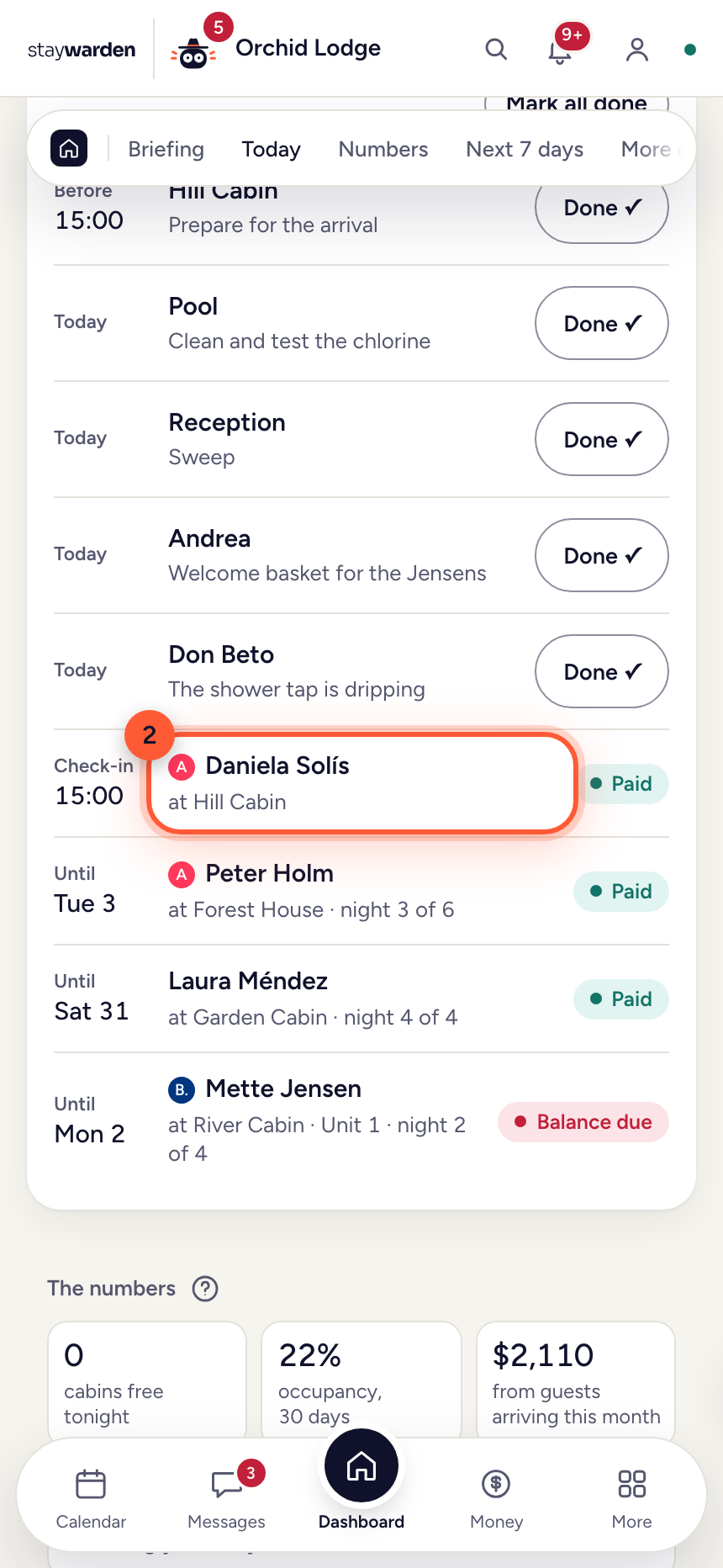
Under “Today at the lodge”, every in-house guest has a row: where they’re staying, which night of how many, and until when. Tap a guest to open the stay.
WhyArrivals, in-house guests and the day’s tasks in one list, in the order the day unfolds. A balance still due is marked on the row, so you collect it before checkout, not after.
 Step 3
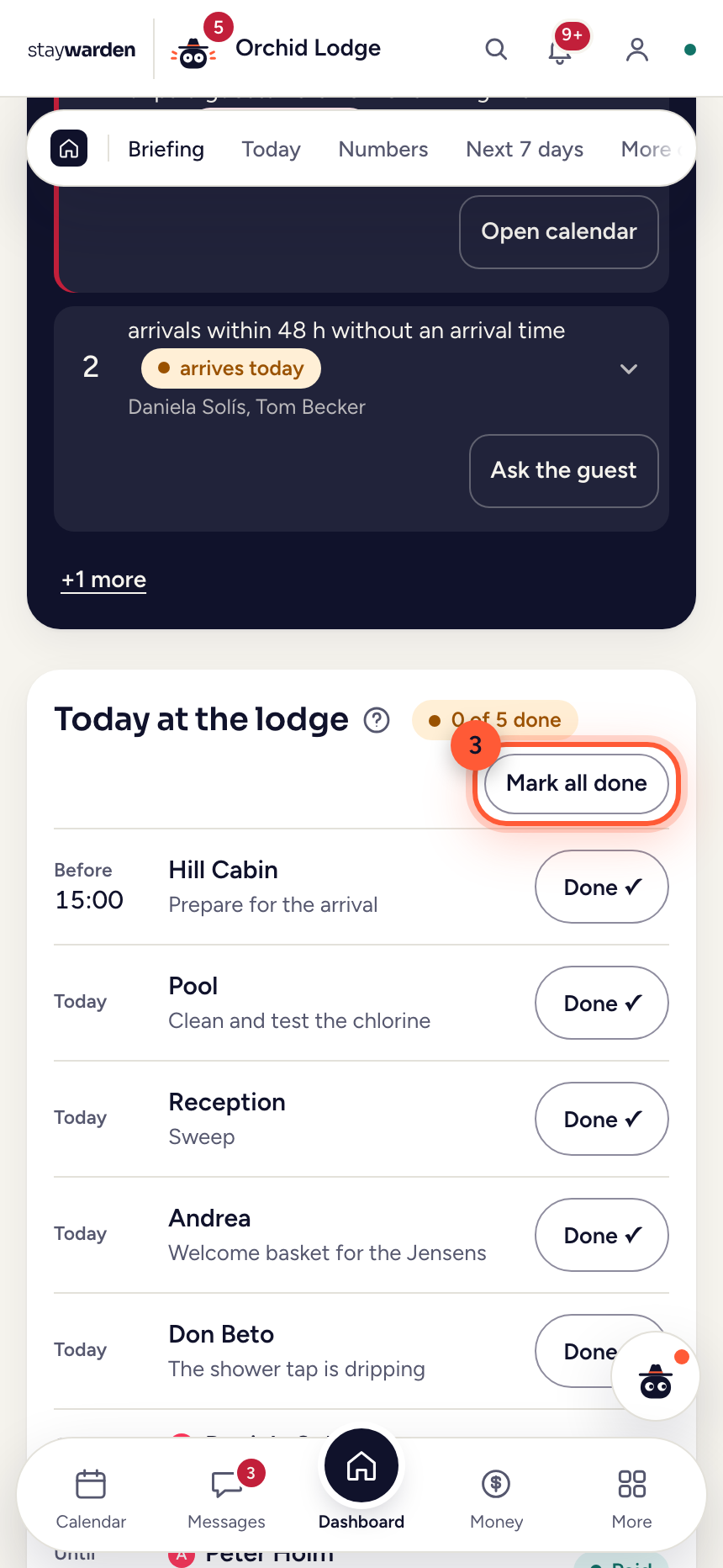
Press “Done ✓” on a task. It moves down to “Done today”.
WhyYour team checks off the same tasks on their own phones, so you see the day getting done without asking. Each one records who did it and when.
 Step 4
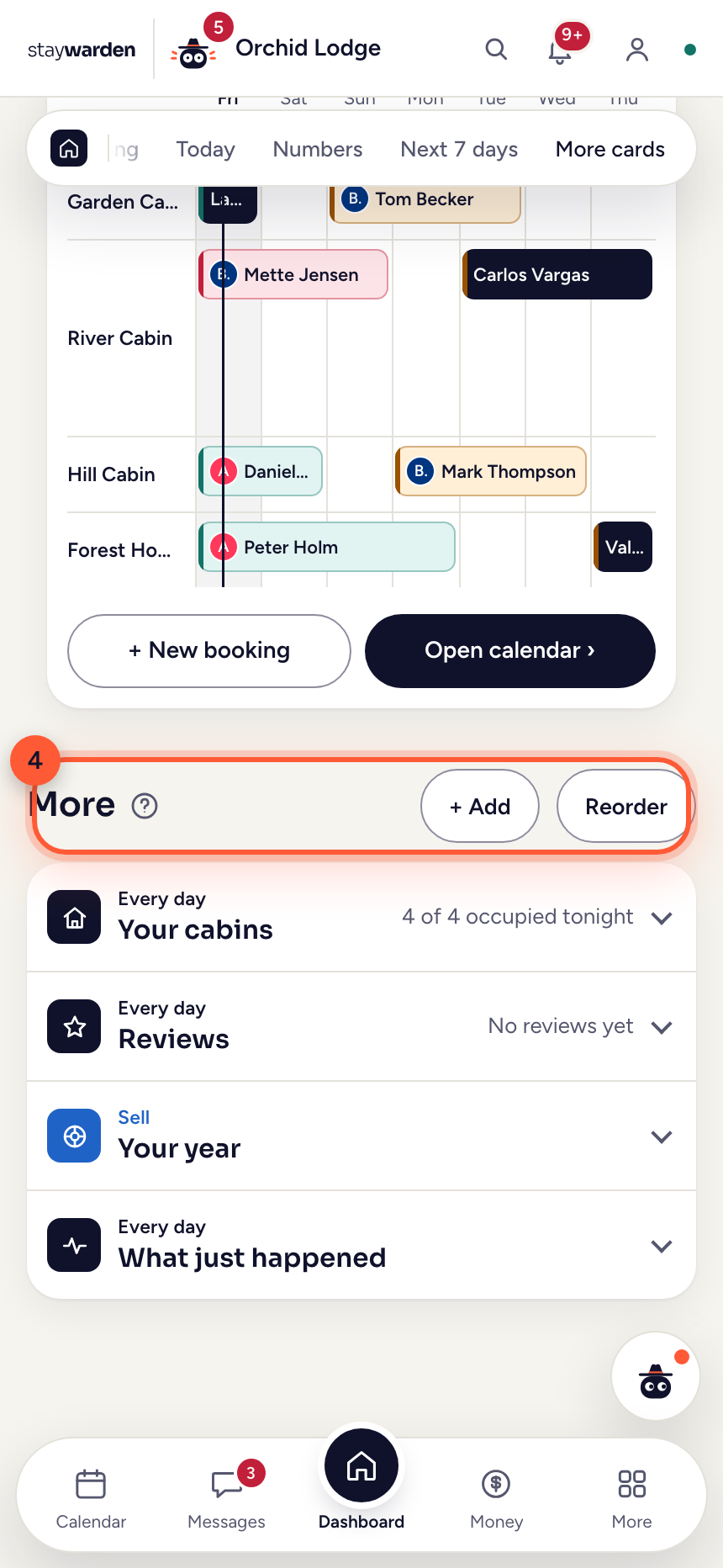
Further down, “+ Add” puts more cards on the Dashboard — your cabins, reviews, your year, what just happened — and “Reorder” moves them.
WhyThe briefing, today, the numbers and the next 7 days always stay on top, and the bar at the top of the page jumps straight to each of them.
Create a booking by hand
A guest wrote to you directly, or called. You add the booking yourself — and those nights close on every channel the moment you save.
 Step 1
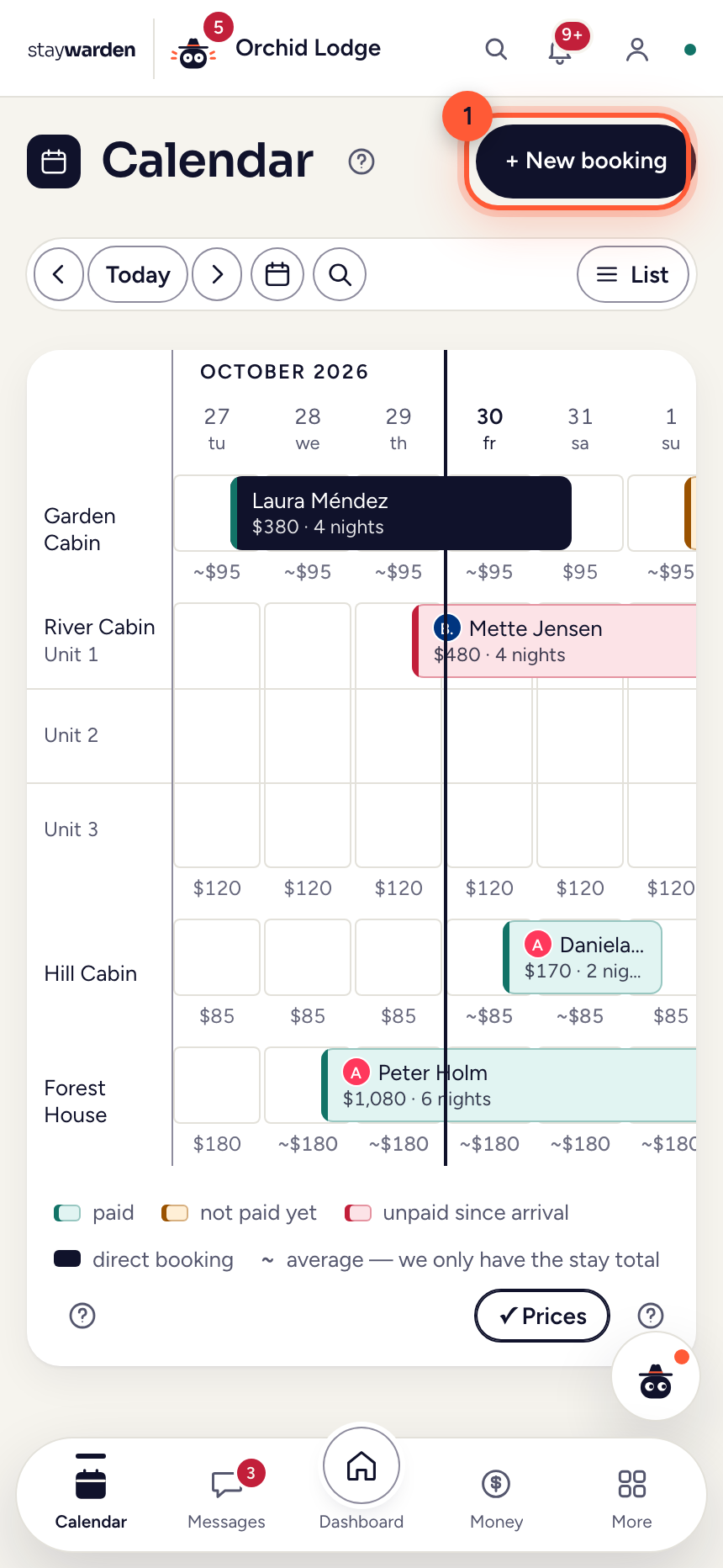
On the Calendar tab, press “+ New booking”.
WhyBookings from Booking.com and Airbnb arrive on their own. This button is for the guest who reached you off-channel — a phone call, a WhatsApp message, a friend of a friend.
 Step 2
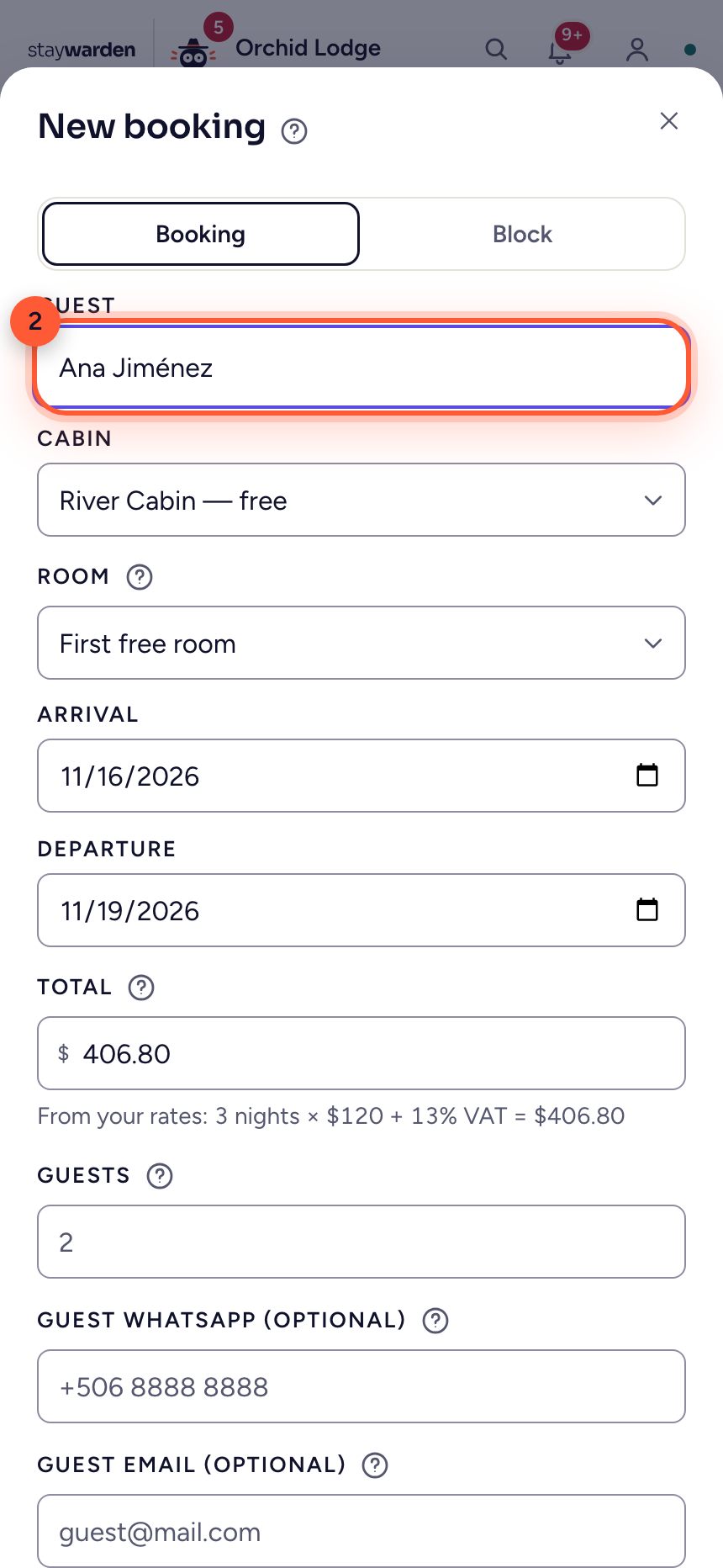
Type the guest’s name, then pick the cabin and the arrival and departure dates.
WhyThe name is what you’ll recognize on the calendar. Phone and email are optional, but with them the confirmation can go out by WhatsApp and email.
 Step 3
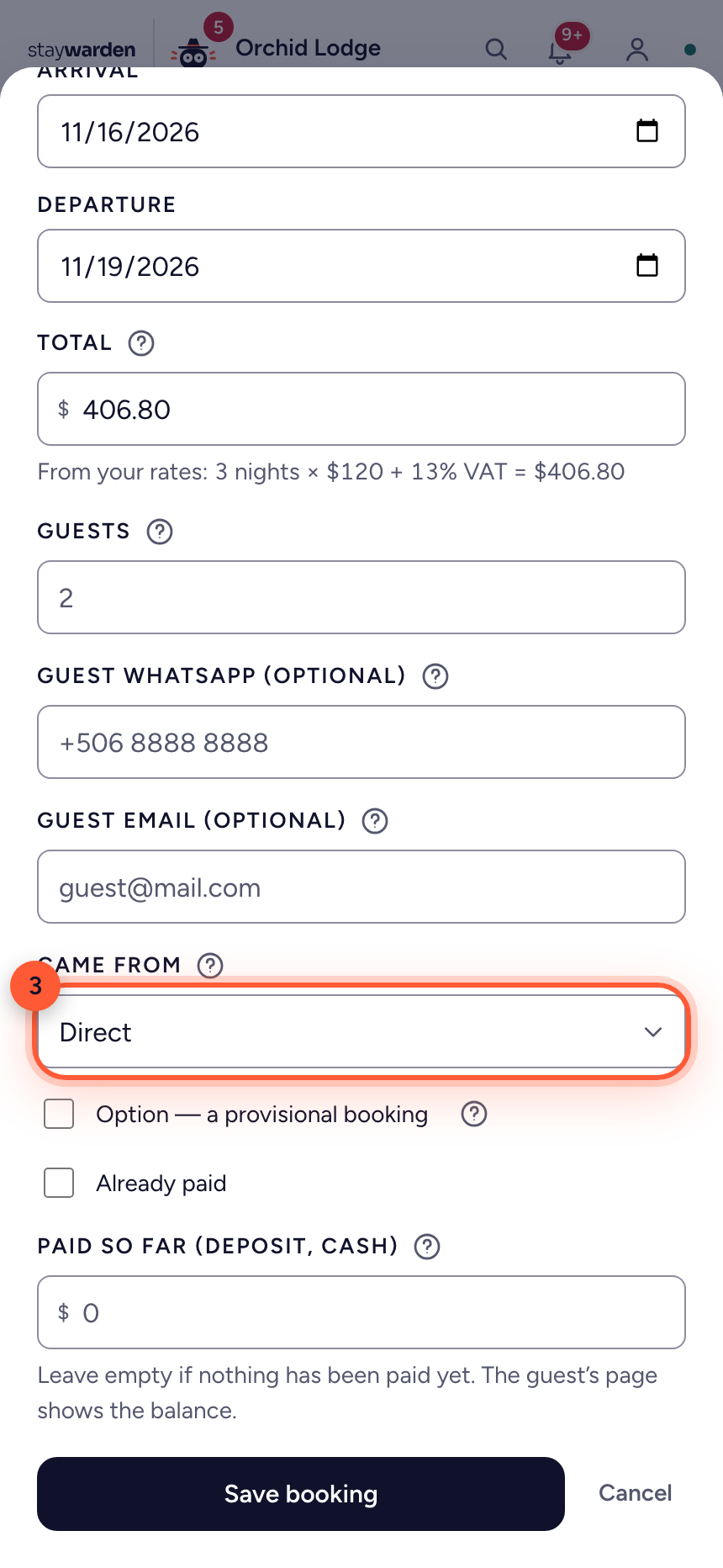
Under “Came from”, choose how the booking came in — Direct, or a channel.
WhyThis is what lets the Money tab show you what each channel really costs. A direct booking has no commission; that difference is the whole point of selling direct.
 Step 4
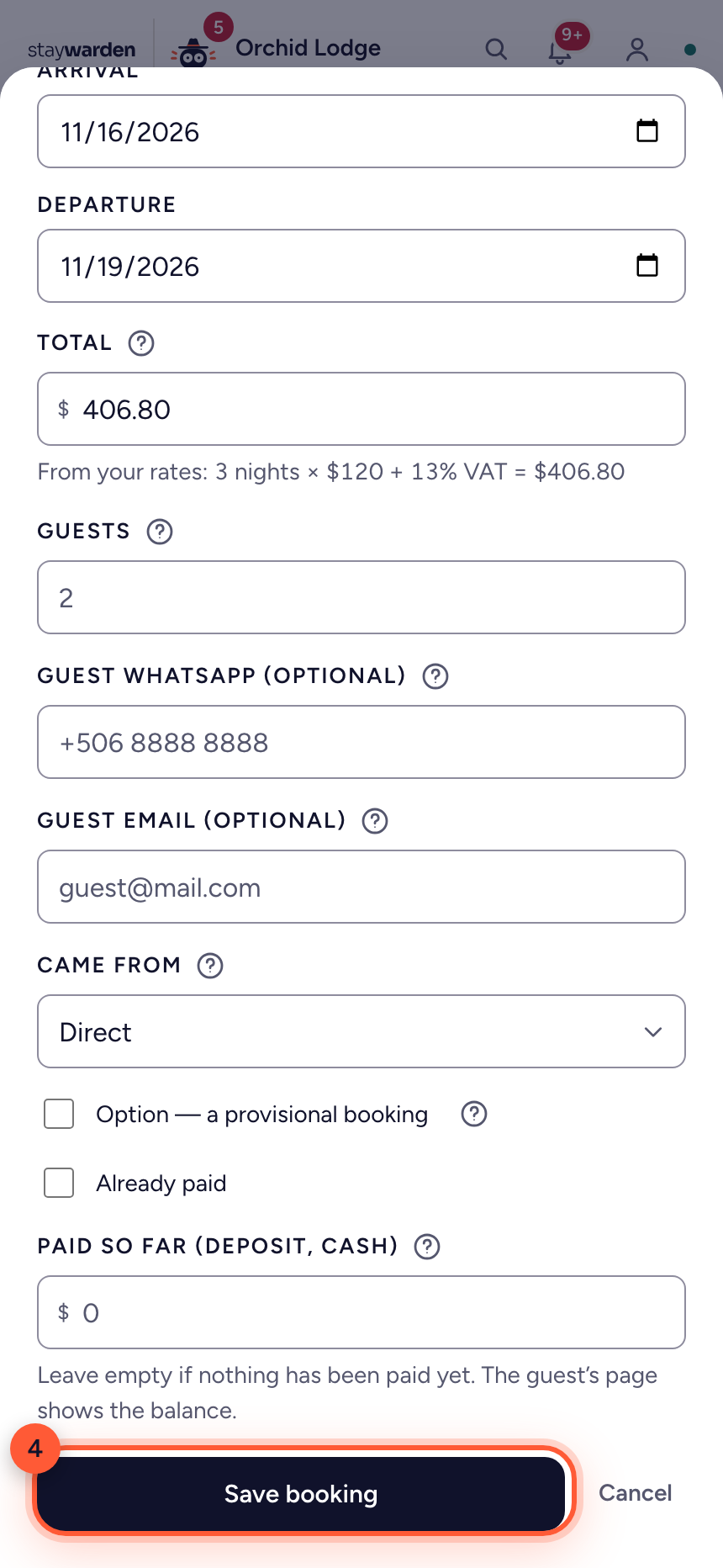
Press “Save booking”. A four-digit code appears — that’s the guest’s code.
WhyThe moment you save, those nights are blocked on every connected channel, so the same cabin can’t be sold twice. With that code and their surname, the guest opens their own page.
Book or block by dragging across the calendar
The fastest way: draw the nights straight onto the grid.
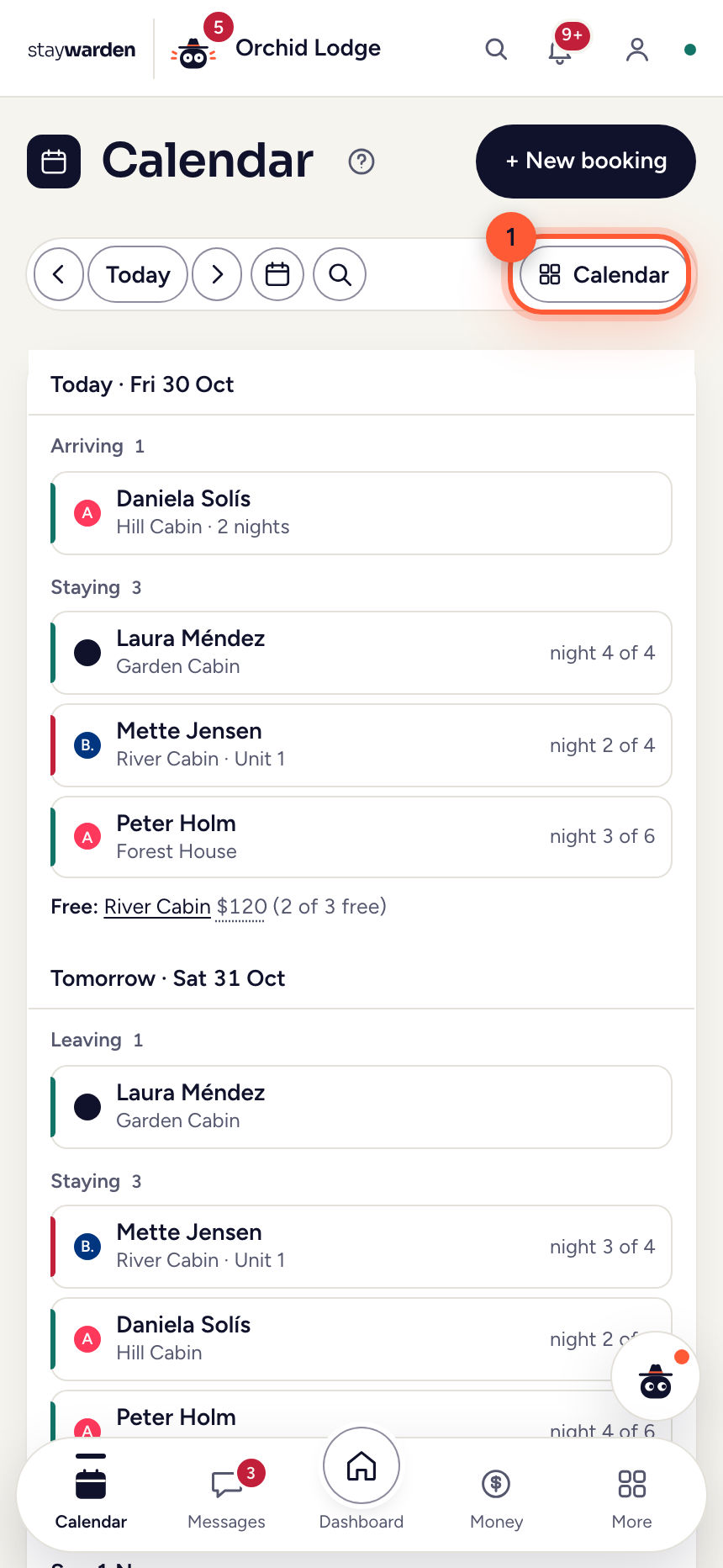 Step 1
On a phone, the calendar opens as a day-by-day list. Tap “Calendar” to see one row per cabin. On a computer the grid is already there.
WhyThe list is for reading the day — who arrives, who stays, who leaves. The grid is for planning: it shows the gaps, and it is where you draw. The phone remembers your choice.
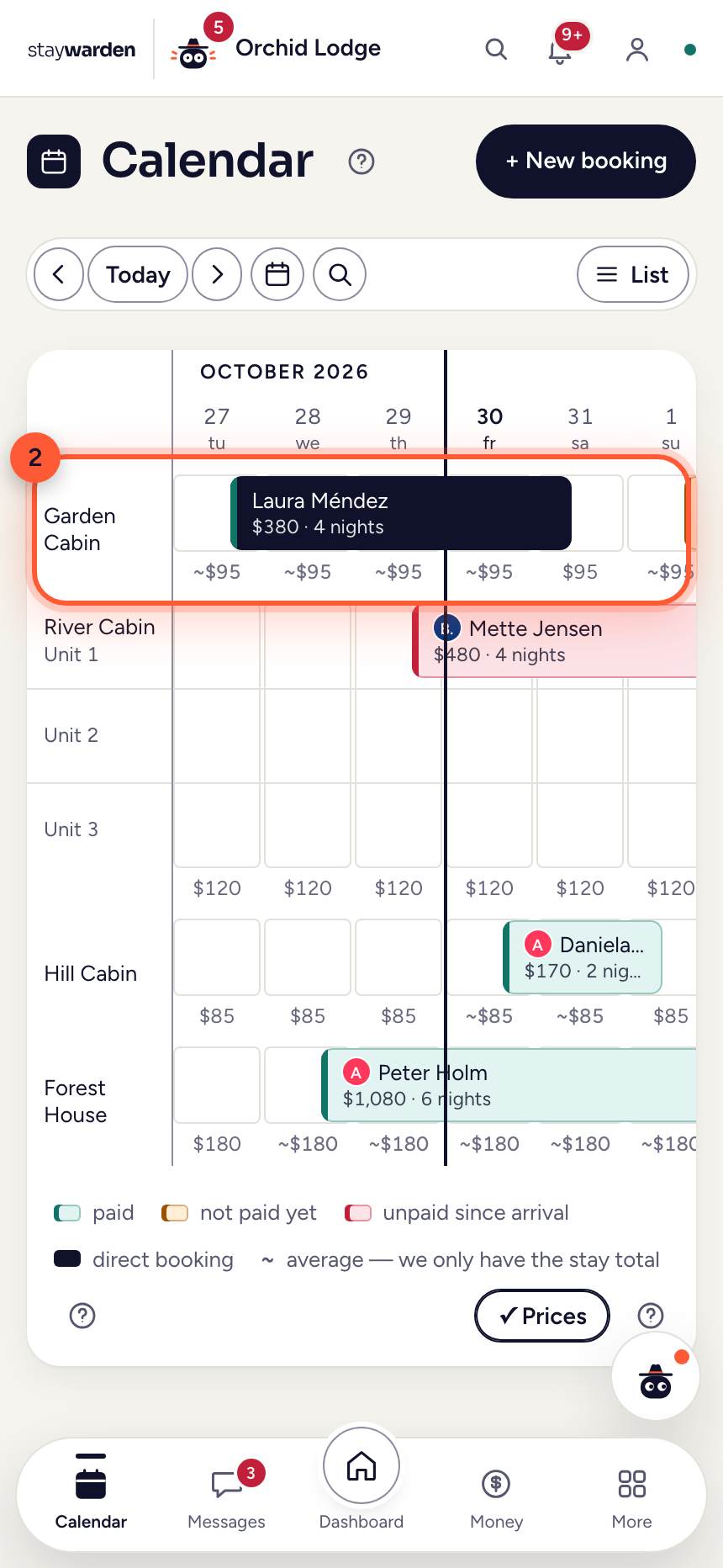 Step 2
On a cabin’s row, press and drag across the nights. On a phone, hold for a moment first, then drag. If you reach the edge, the calendar scrolls on by itself.
WhyThe cabin and dates are already filled in — you only add the name. The short hold on touch is on purpose: it keeps a normal sideways scroll from turning into a booking by accident.
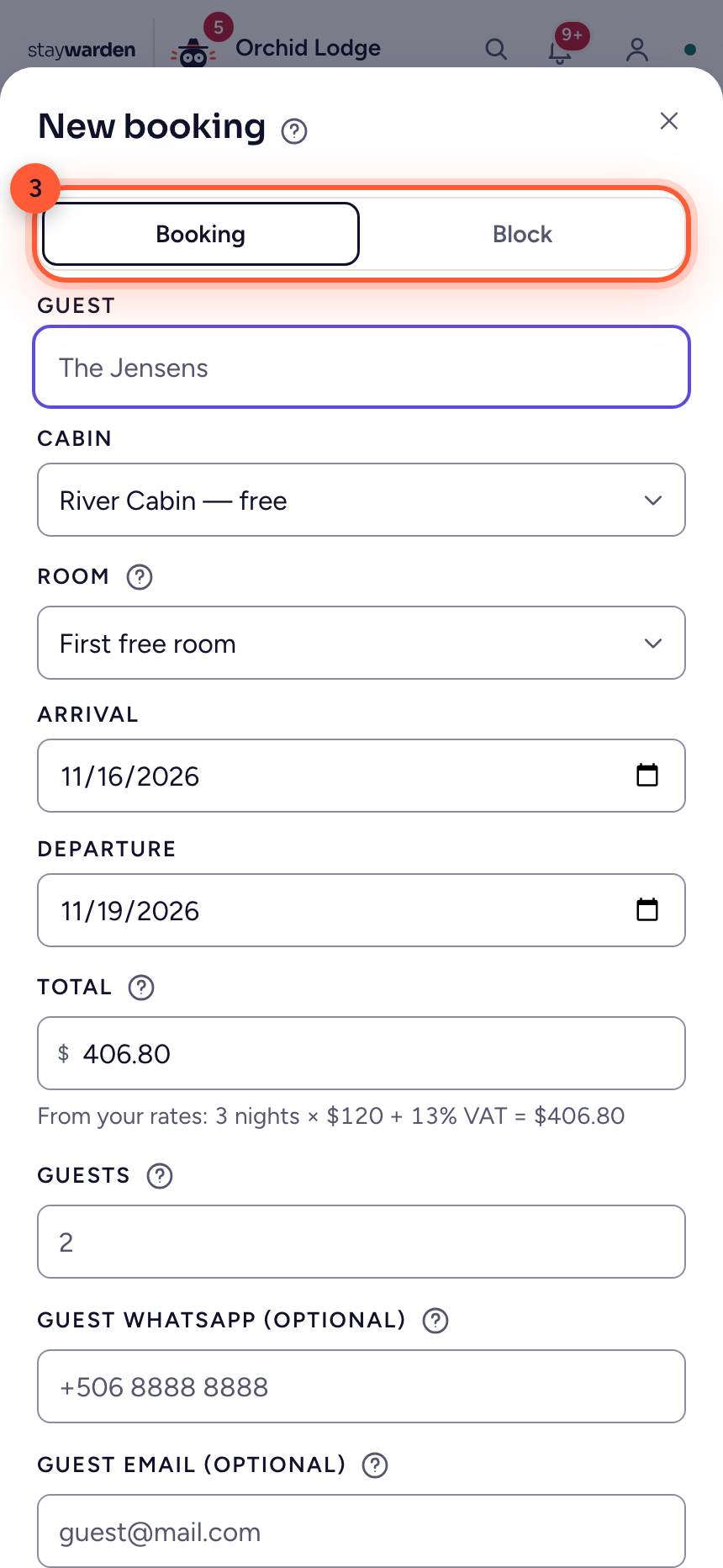 Step 3
Let go, and a small menu opens. “Adjust price” changes what the nights cost. “New booking”, “Owner stay” and “Block dates” open the form with the cabin and the dates filled in. A block closes those nights with no guest, no amount and no code: for maintenance, the owner’s own stay or a closed season.
WhyIt’s the same gesture for both, and the calendar can no longer sell a closed cabin. If booked nights fall in the middle, only the free ones get blocked — and the screen tells you which were left out.
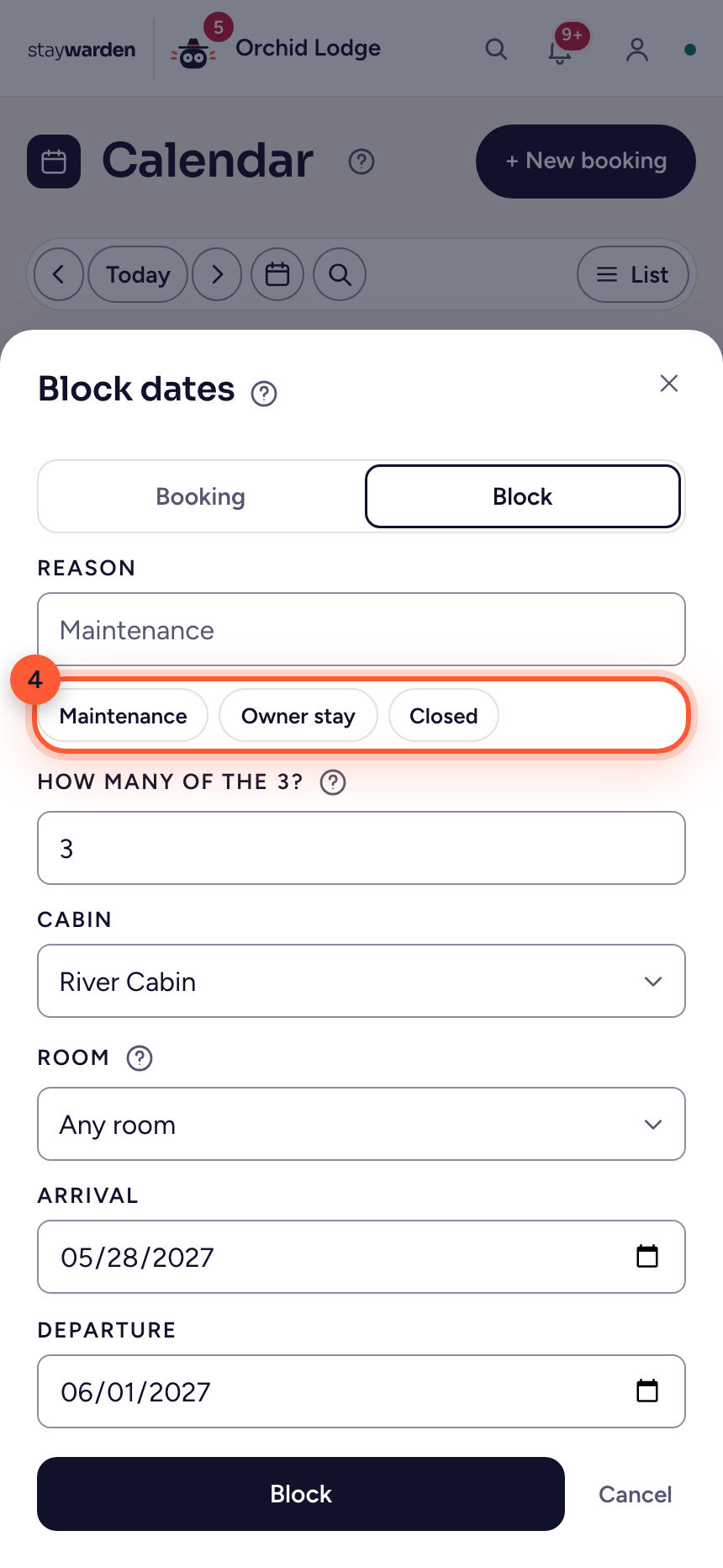 Step 4
Pick the reason — maintenance, owner’s stay or closed. If the cabin has several rooms, choose how many you are closing. To remove a block, tap the striped bar, open “Edit the block” and press “Remove the block”.
WhyClosing two of seven leaves five on sale. Removing the block reopens every room you closed on those nights, all at once.
Tasks: one list for everything that needs doing
The leaky faucet, the airport transfer, the welcome basket — one action list in color-coded categories, each task with a person, a status, a priority and a deadline.
 Step 1
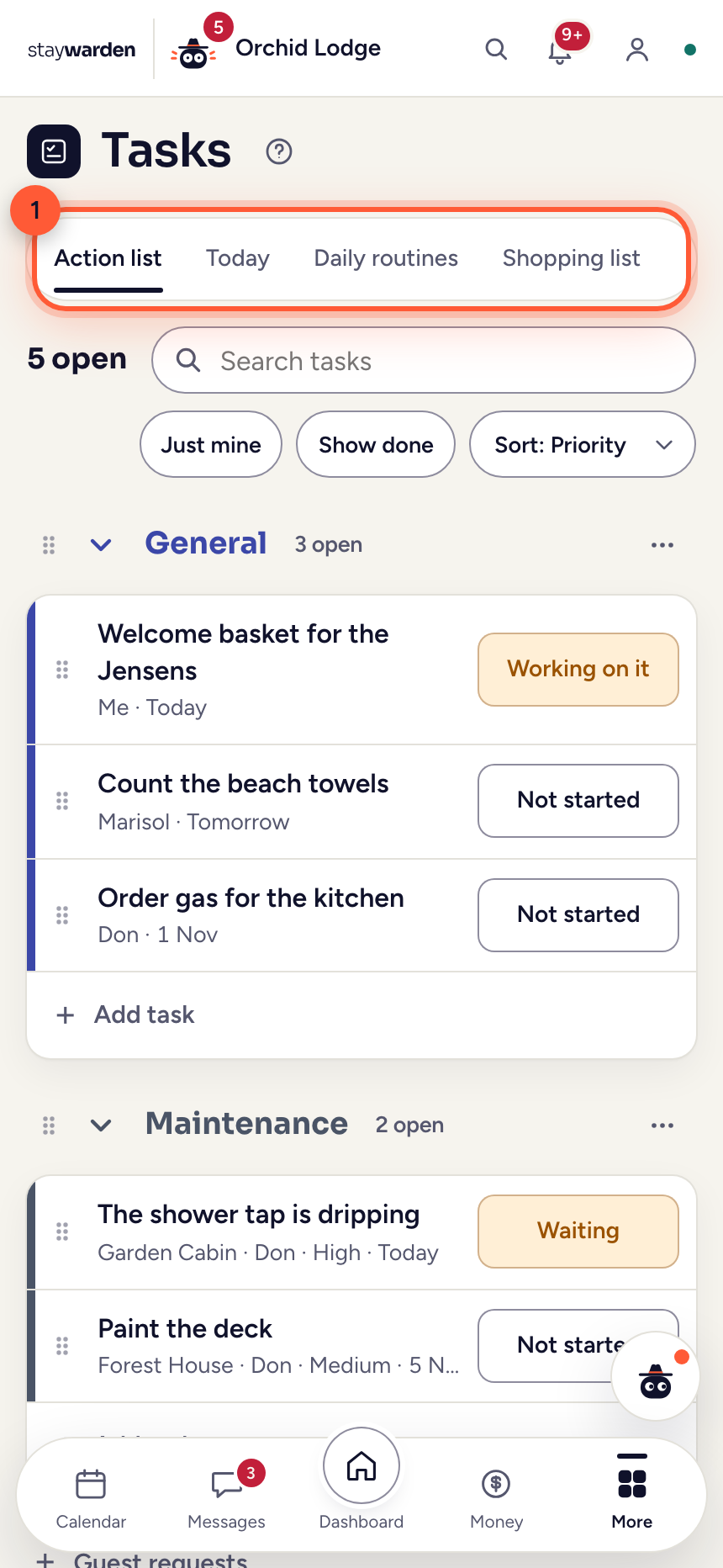
On the Tasks tab, the bar at the top holds the parts: “Action list”, “Today” and “Daily routines”. The Action list shows every open task, grouped in color-coded categories.
WhyOne list instead of many boards: everything still open, at a glance. Today holds what repeats — the cleaning and the daily routines.
 Step 2
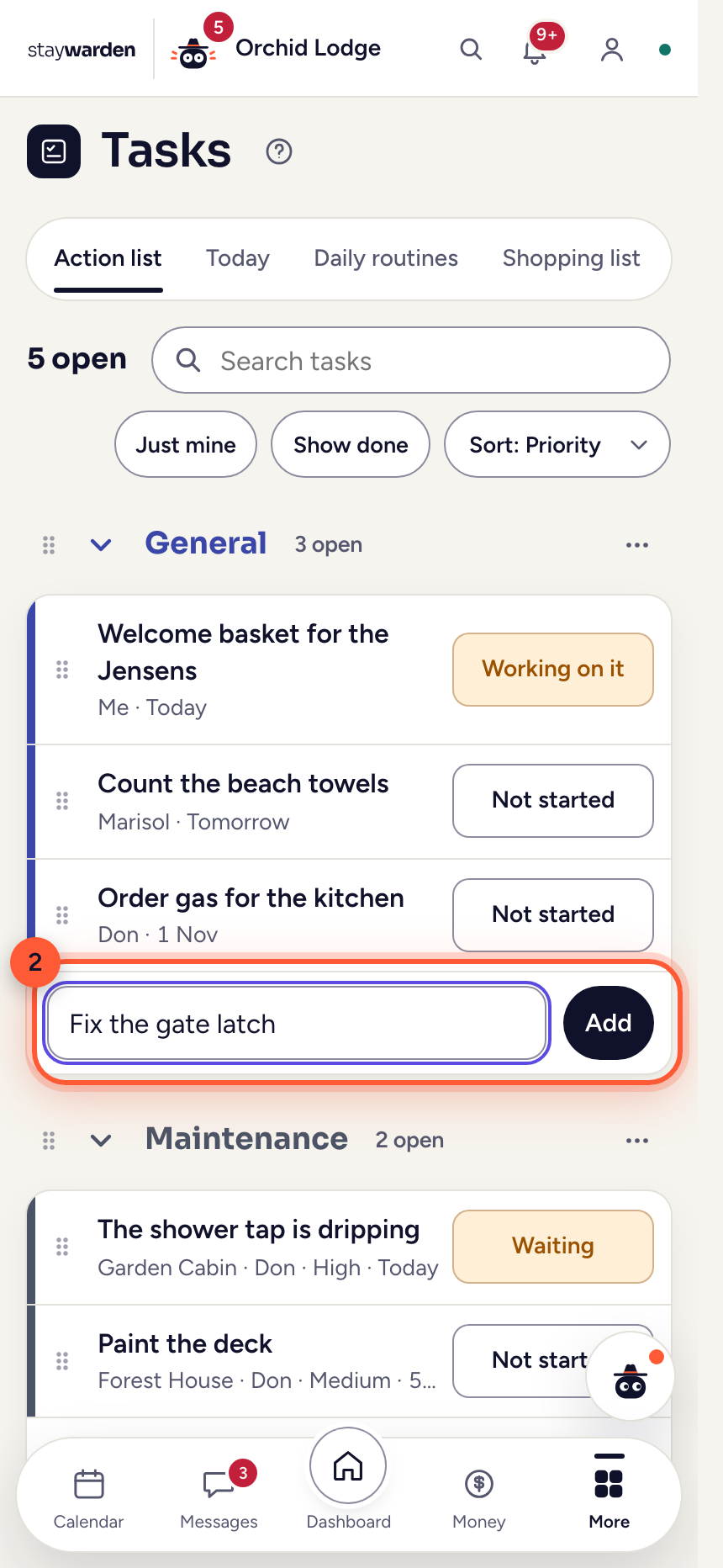
Under a category, tap “+ Add task”, type and press Enter.
WhyName it now and add the details when you know them — getting it out of your head takes ten seconds.
 Step 3
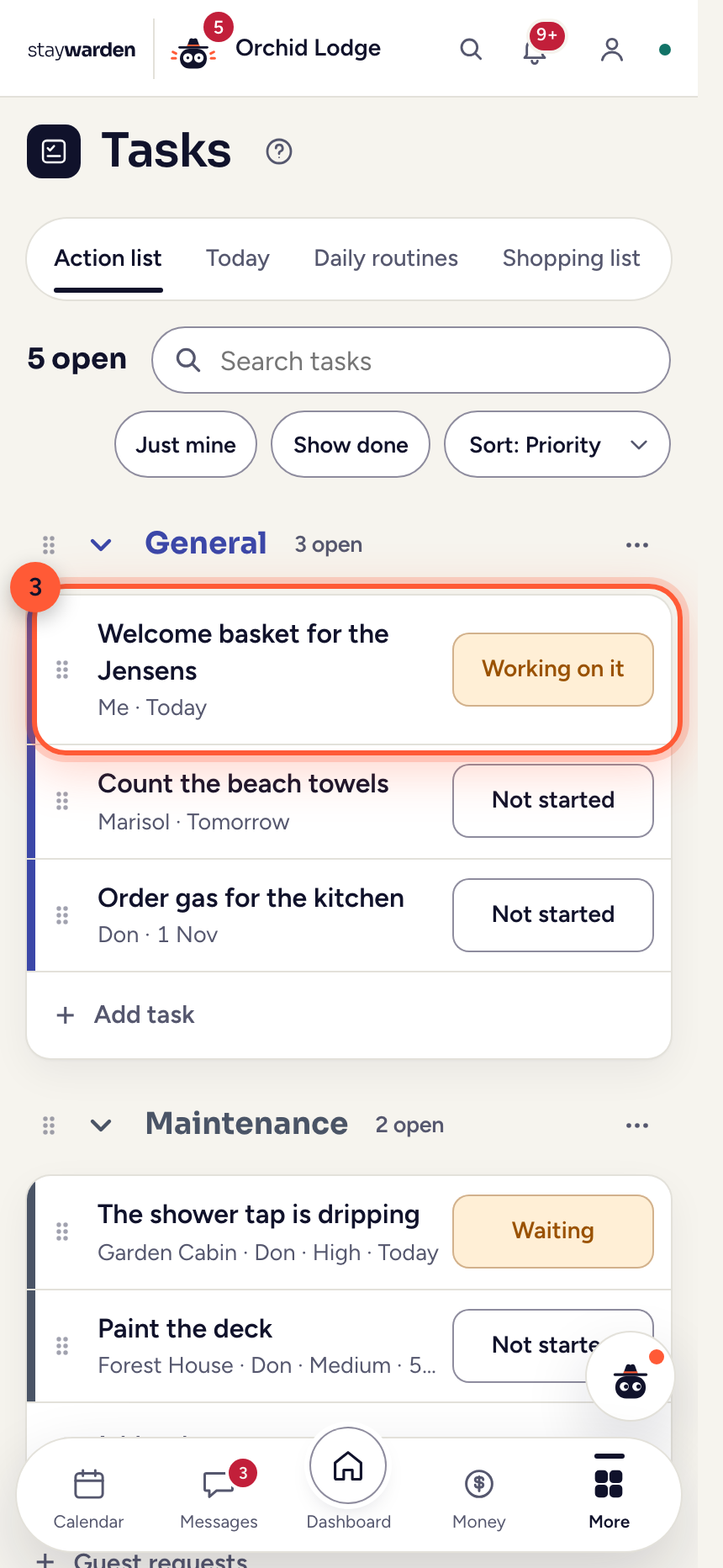
On the row, change the Person, Status, Priority or Deadline right there. On a phone, tap the task to open it.
WhyThe person finds it on their own phone. The colors mean the same everywhere in Staywarden: orange is working on it, green is done; priority is red, yellow or green.
 Step 4
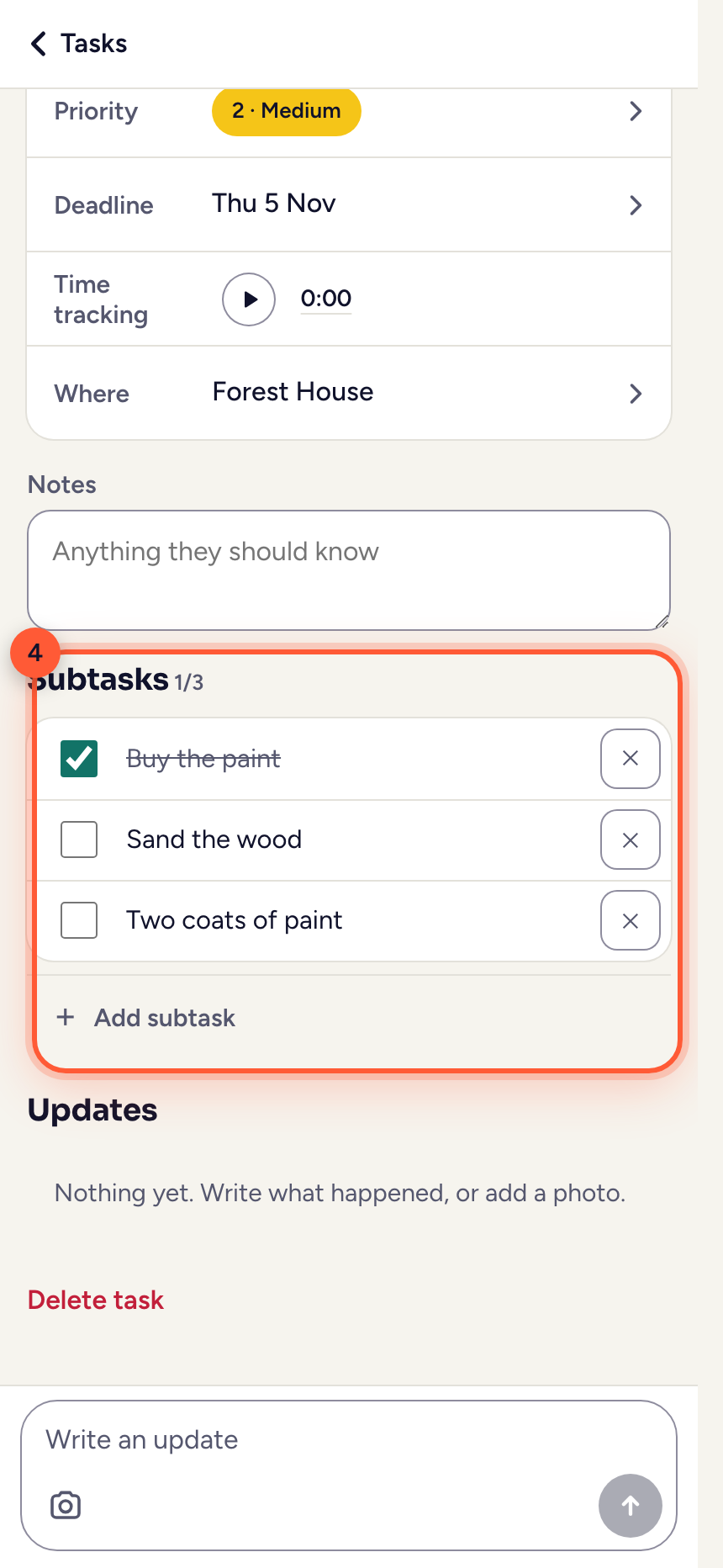
Tap a task’s name to open it: who, status, when and how often it repeats, the cabin or area, the guest, a note, Subtasks and Updates.
WhySubtasks are for jobs with steps — buy the paint, sand the wood, two coats — and the team ticks them off from their phones. Updates are the task’s own conversation, with photos, so nobody has to ask “Did the part arrive?” on WhatsApp.
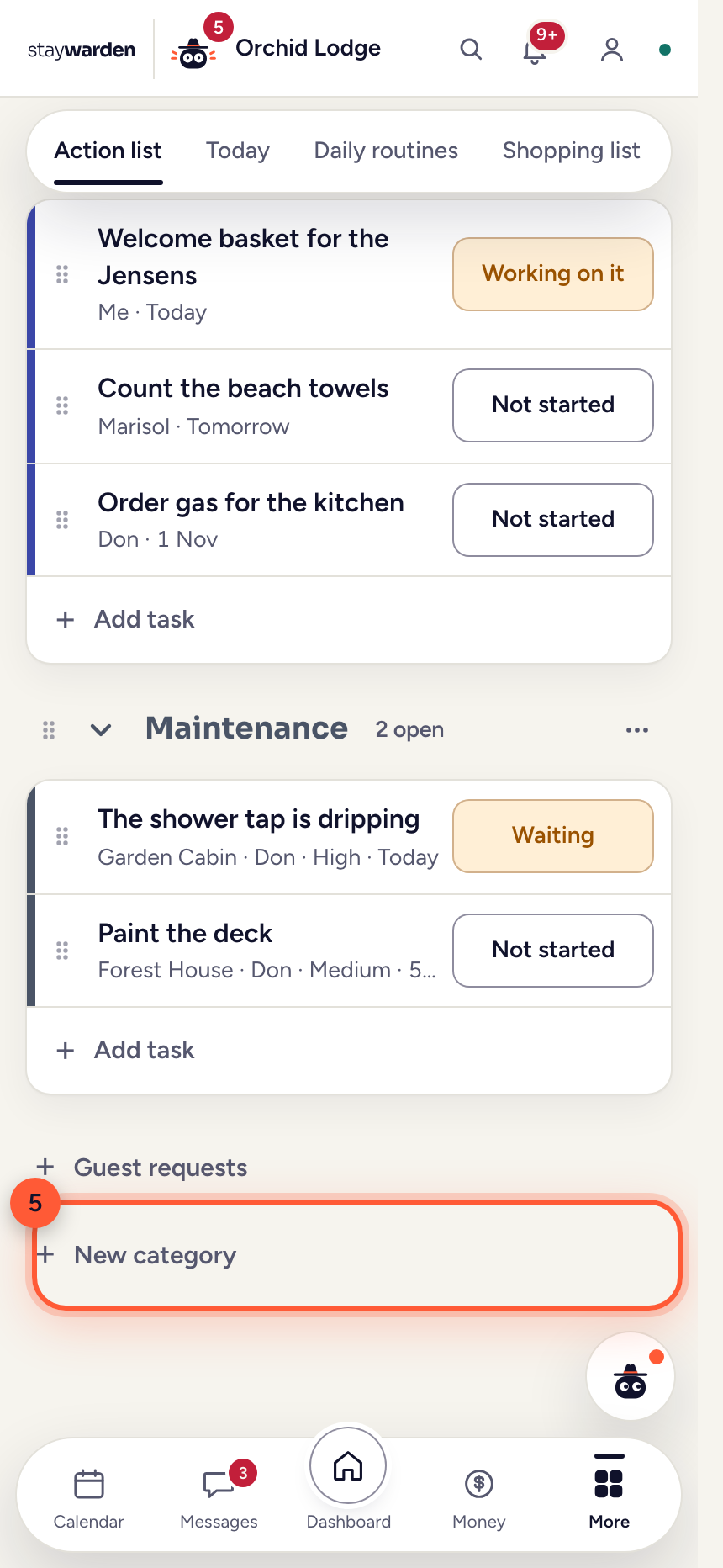 Step 5
“+ New category” adds a group — like General, Maintenance or Guest requests, or your own. Its ⋯ changes the name, the color and “Who can see it”: everyone on the team, or only you and the people you pick.
WhyDrag a task by its handle to move it or put it in another category. A private category stays private: someone you give one of its tasks to sees that task, not the rest.
Staff hours and pay
For the people you pay by the hour: a timer each, their hours per week, half-month or month, and their pay calculated.
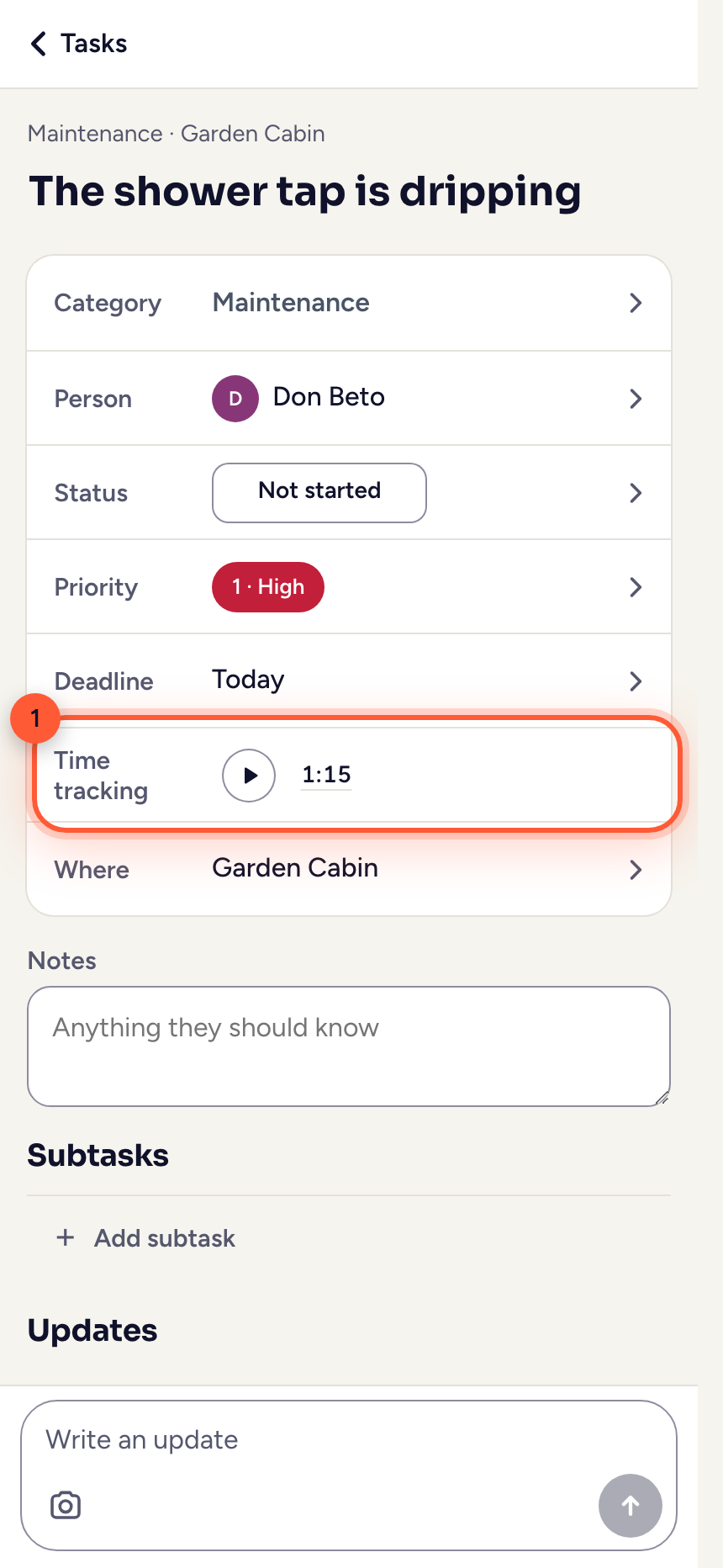 Step 1
On a task, ▶ starts the timer and ■ stops it — each person does it from their own phone, or you do it for them.
WhyOne timer per person: starting another one stops the first. A timer still running after 14 hours turns red — someone forgot to stop it.
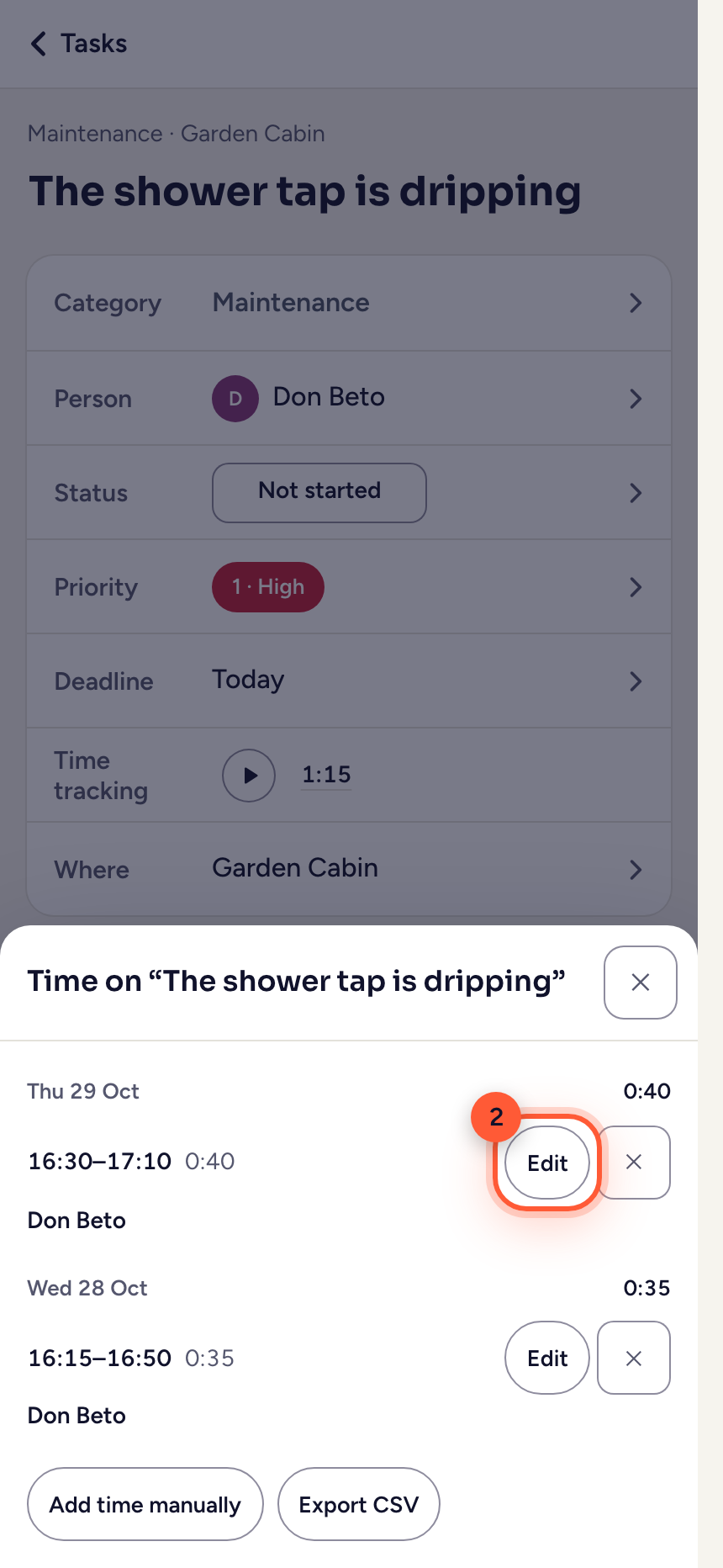 Step 2
Tap the time to see every session. “Edit” corrects one, and “Add time manually” adds a shift someone forgot to clock.
WhyEvery change is logged — before and after, who and when — so both sides can trust the hours.
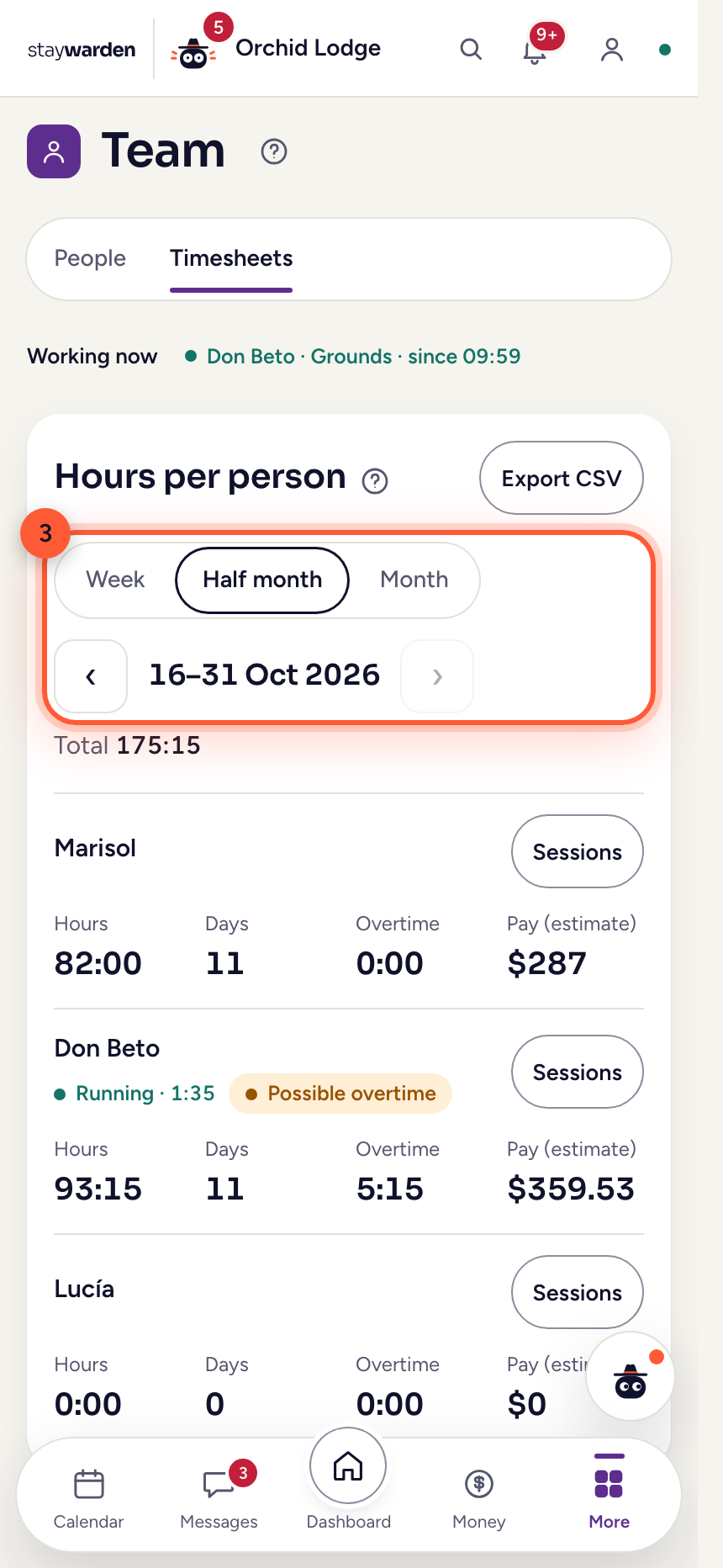 Step 3
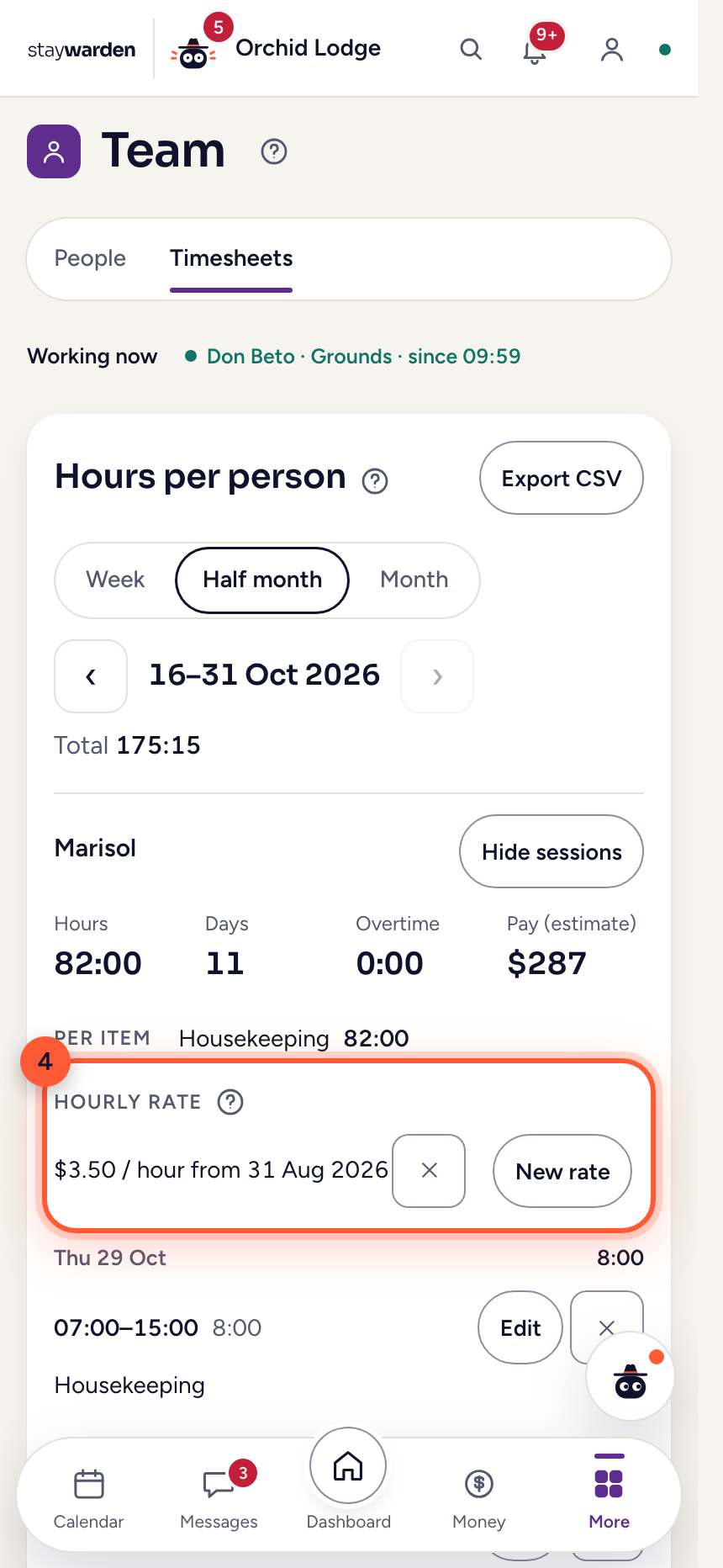
On the Team tab, open “Timesheets”. Choose Week, Quincena or Month, and move back and forth with ‹ ›.
WhyHours, days worked and possible overtime per person, for exactly the period you pay. “Working now” at the top shows who is on the clock.
 Step 4
Open a person with “Sessions” and set their hourly rate. The pay estimate updates, overtime included, and “Export CSV” gives the whole period to whoever does your payroll.
WhyRates and pay only show for people with access to Money. Staywarden estimates the pay; it does not run payroll — social security, taxes and payslips stay with your accountant.
Add your team
Your cleaner, your gardener, your accountant — one list, and everyone signs in with their own email and password.
 Step 1
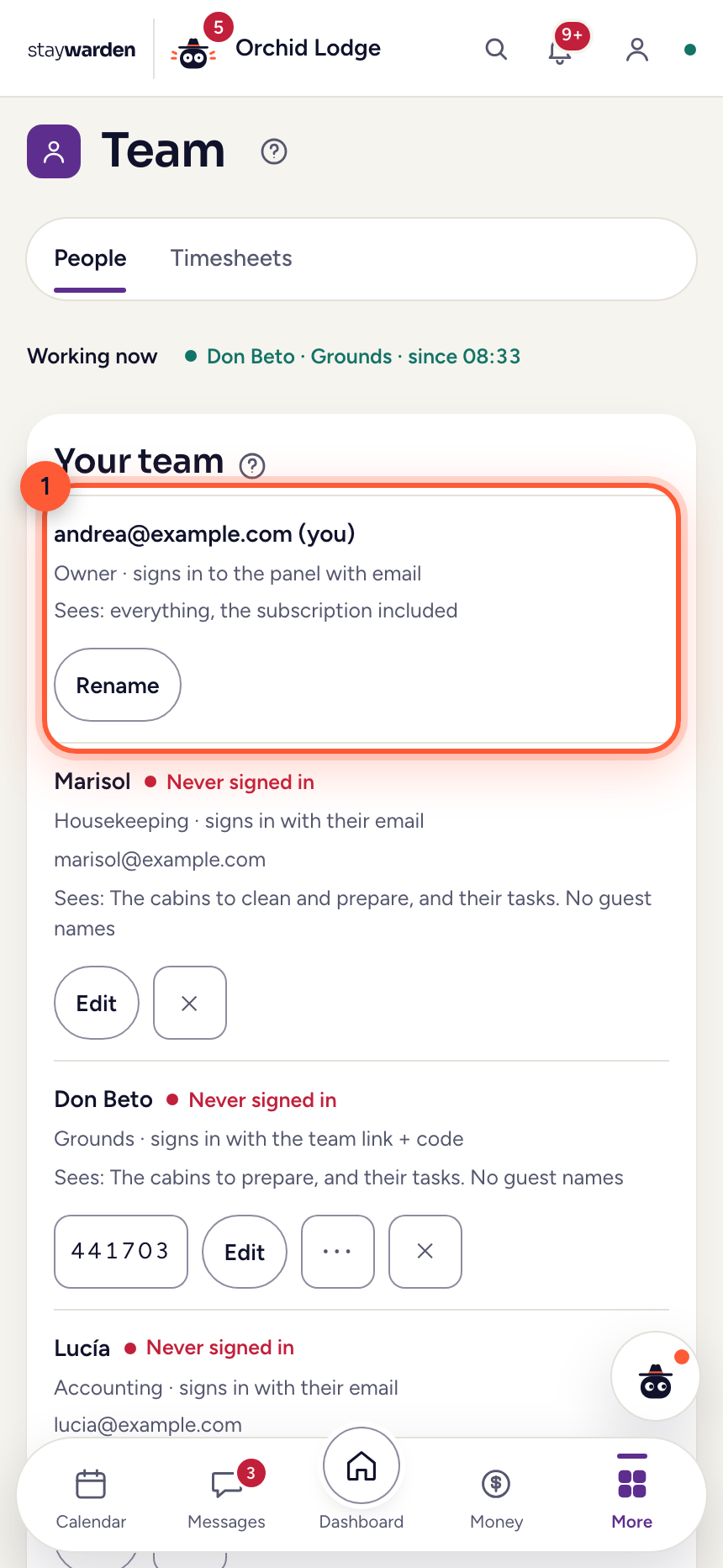
On the Team tab, under “People”, everyone is on one list — you first, then your team. Each row shows the person, their role, how they sign in and what they see.
WhyThe role sets the limits. A cleaner sees tasks; an accountant sees numbers and never passports. It’s decided on the server, so what isn’t theirs is never even sent to their screen.
 Step 2
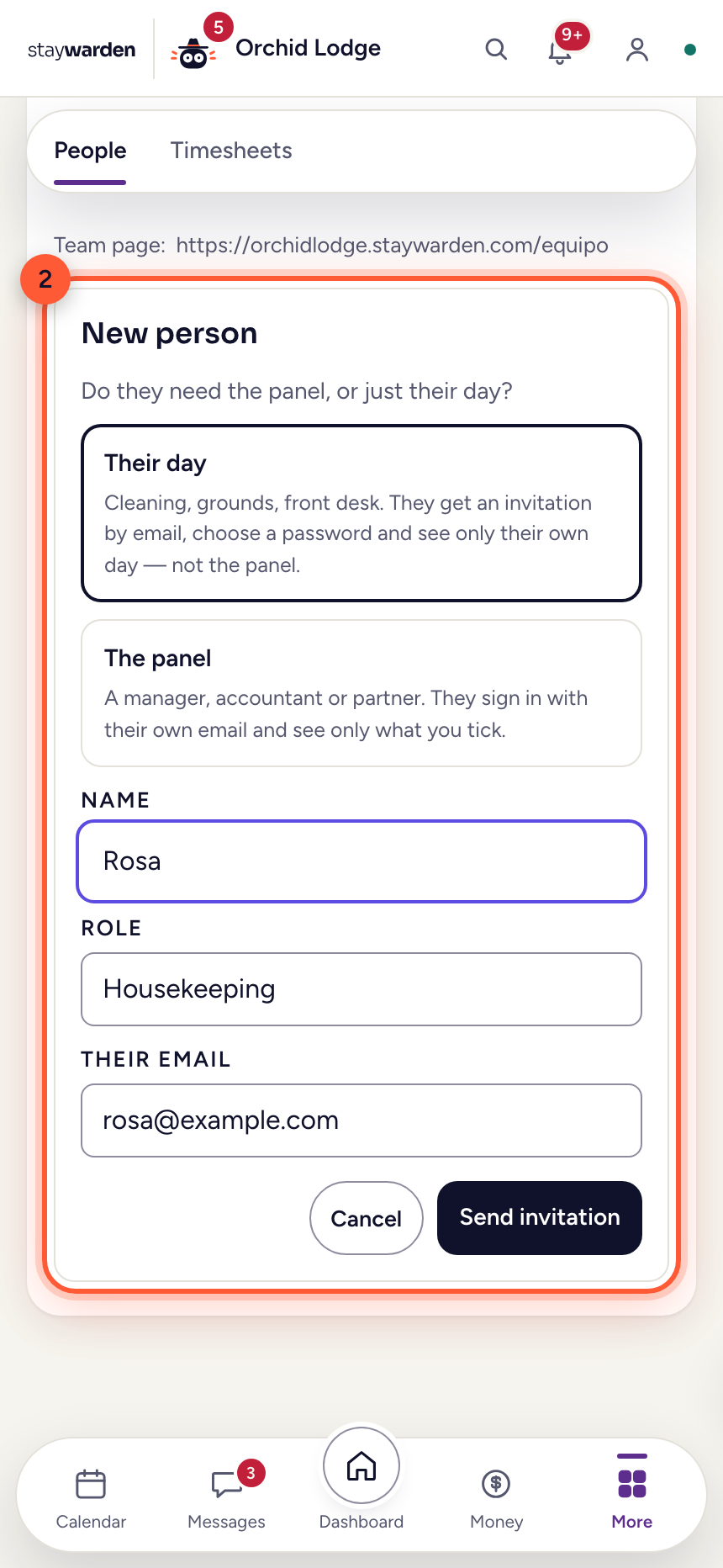
Press “+ Add person” and choose “Their day”. Type a name, choose the role, type their email and press “Send invitation”.
WhyThey get an email from your lodge with a button to choose their password — and from then on they sign in with their own email and see only their own day, never the panel. A manager or your accountant can get “The panel” instead.
 Step 3
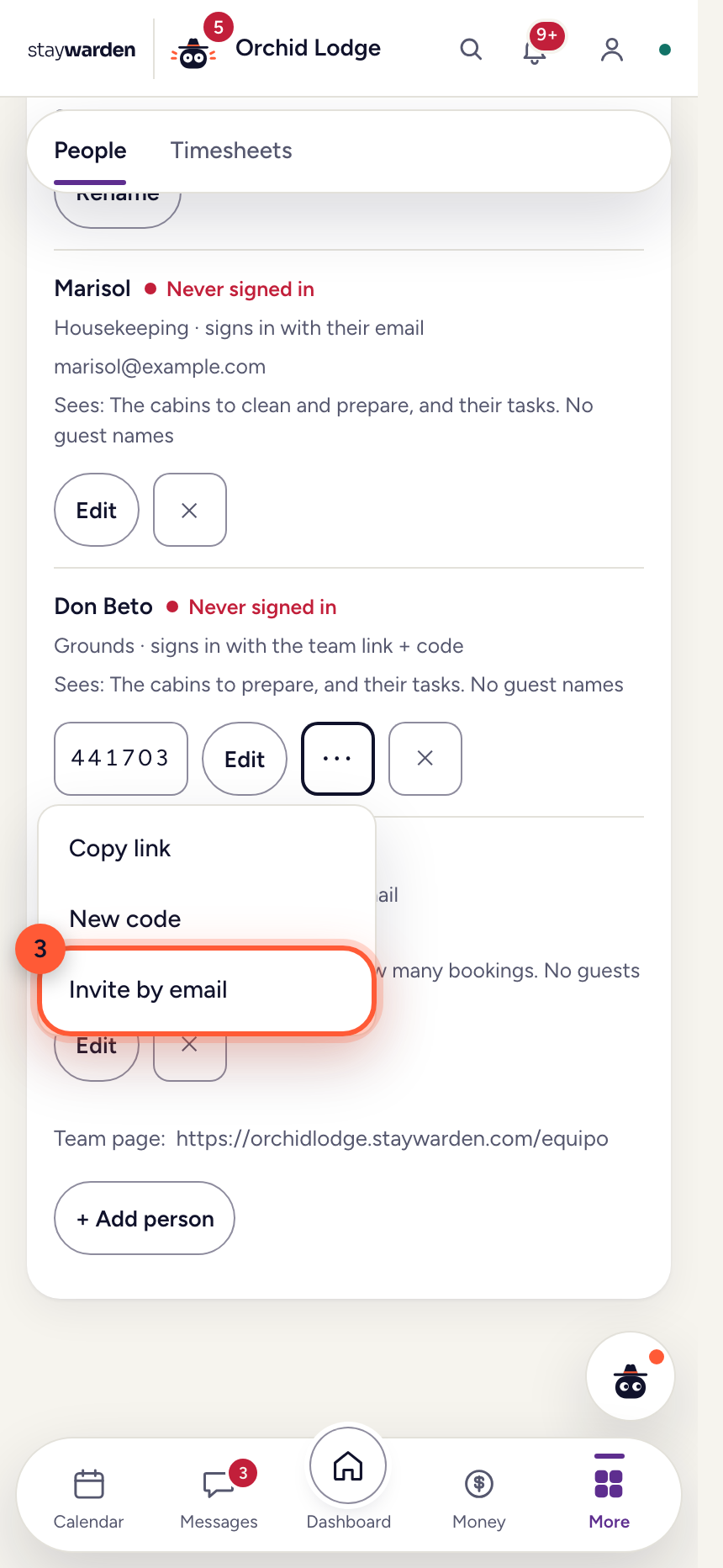
Someone who still signs in with an old code has “Invite by email” on their row. Press it, type their address and send.
WhyTheir code keeps working until the first time they sign in with their email — then it stops, and so does any phone signed in with it. They see today and the next seven days, and mark each task done — you see who did it and when.
Automatic messages
Six of them — confirmation, before arrival, during the stay, extra nights, departure and a review request — sent automatically at the right moment. They come with the Complete plan.
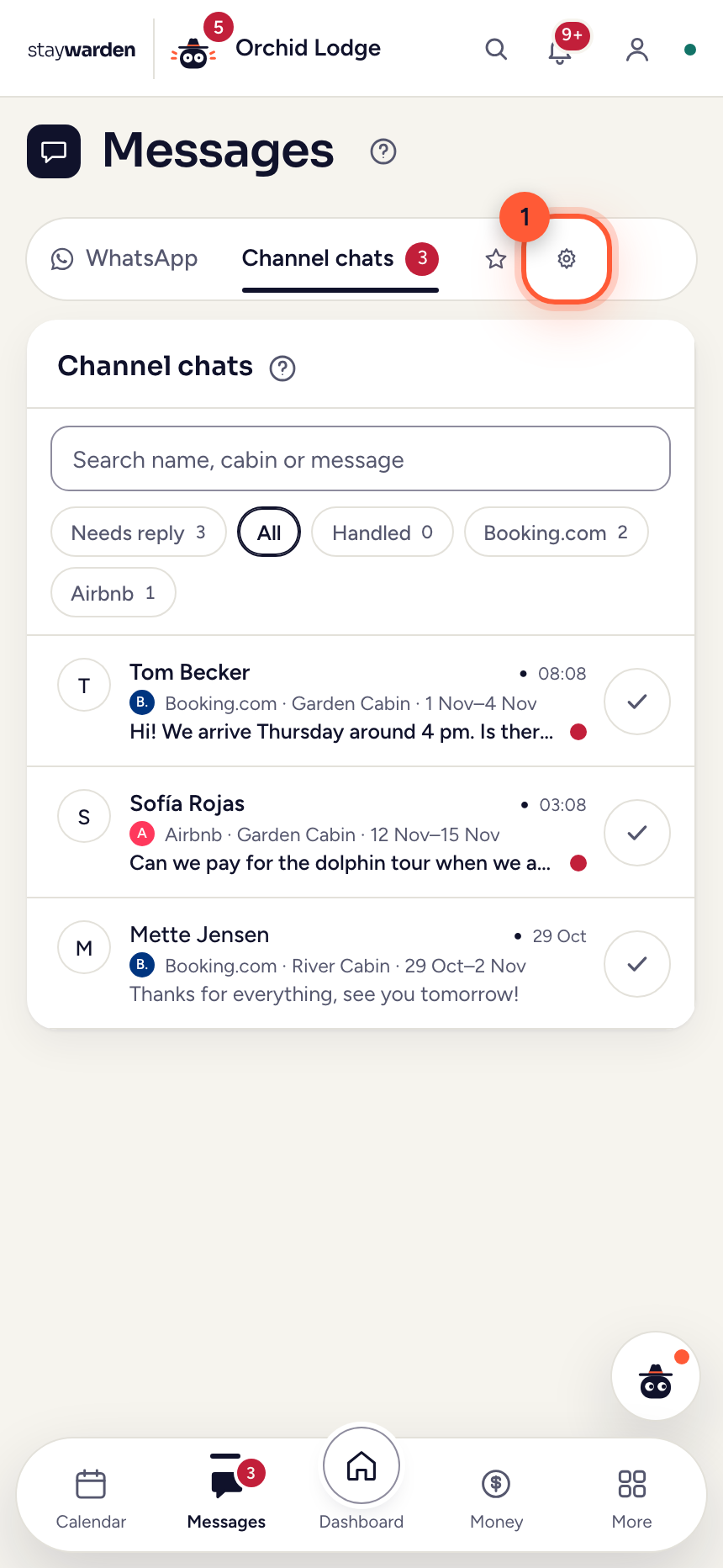 Step 1
On the Messages tab, press ⚙ next to WhatsApp and Channel chats — that opens Message settings.
WhyThe conversations stay on the tab itself. Everything that sends or answers on its own lives behind the gear: the automatic messages, the reply templates, WhatsApp, the channel messages and reviews.
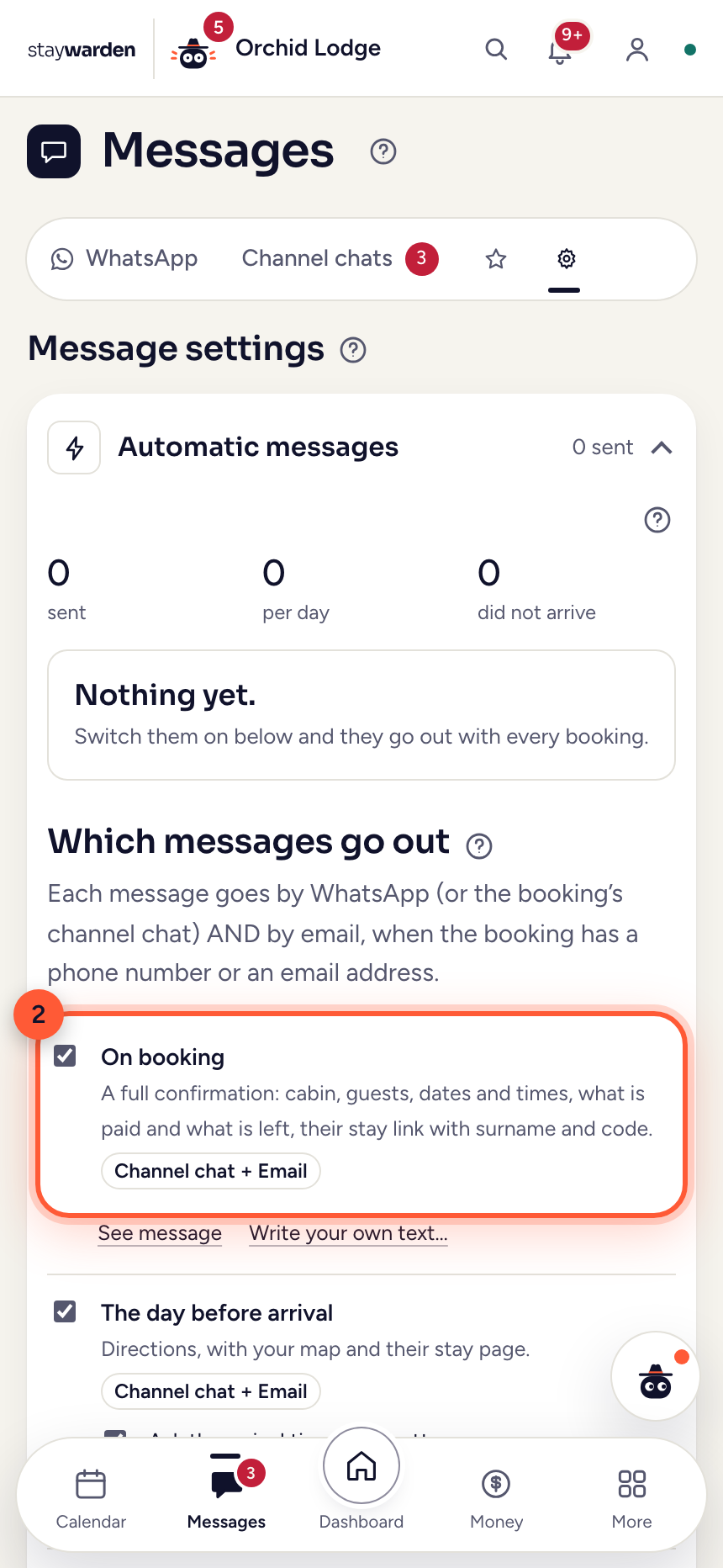 Step 2
Open “Automatic messages” and switch on the ones you want. The same six are also in Settings › Alerts and account › Messages to your guests.
WhyEach one is off until you turn it on — nothing goes to your guests by accident. With a phone number they go by WhatsApp; without one, straight into the channel conversation. The confirmation also goes by email when there’s an address.
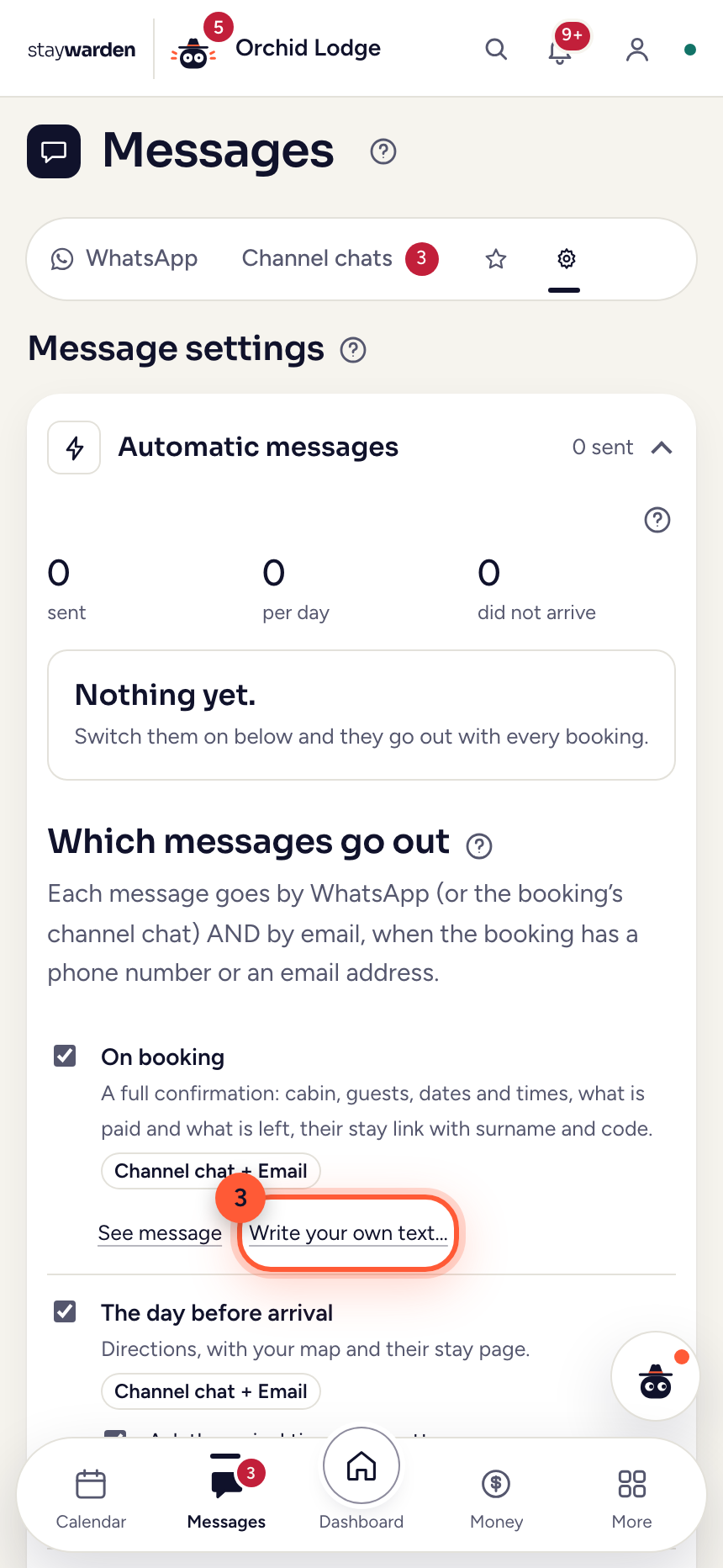 Step 3
Press “Write your own text…” under any message. “See message” next to it shows exactly what the guest gets right now.
WhyThe standard text is good, but your voice is better. “Use the standard text” takes you back to ours at any time.
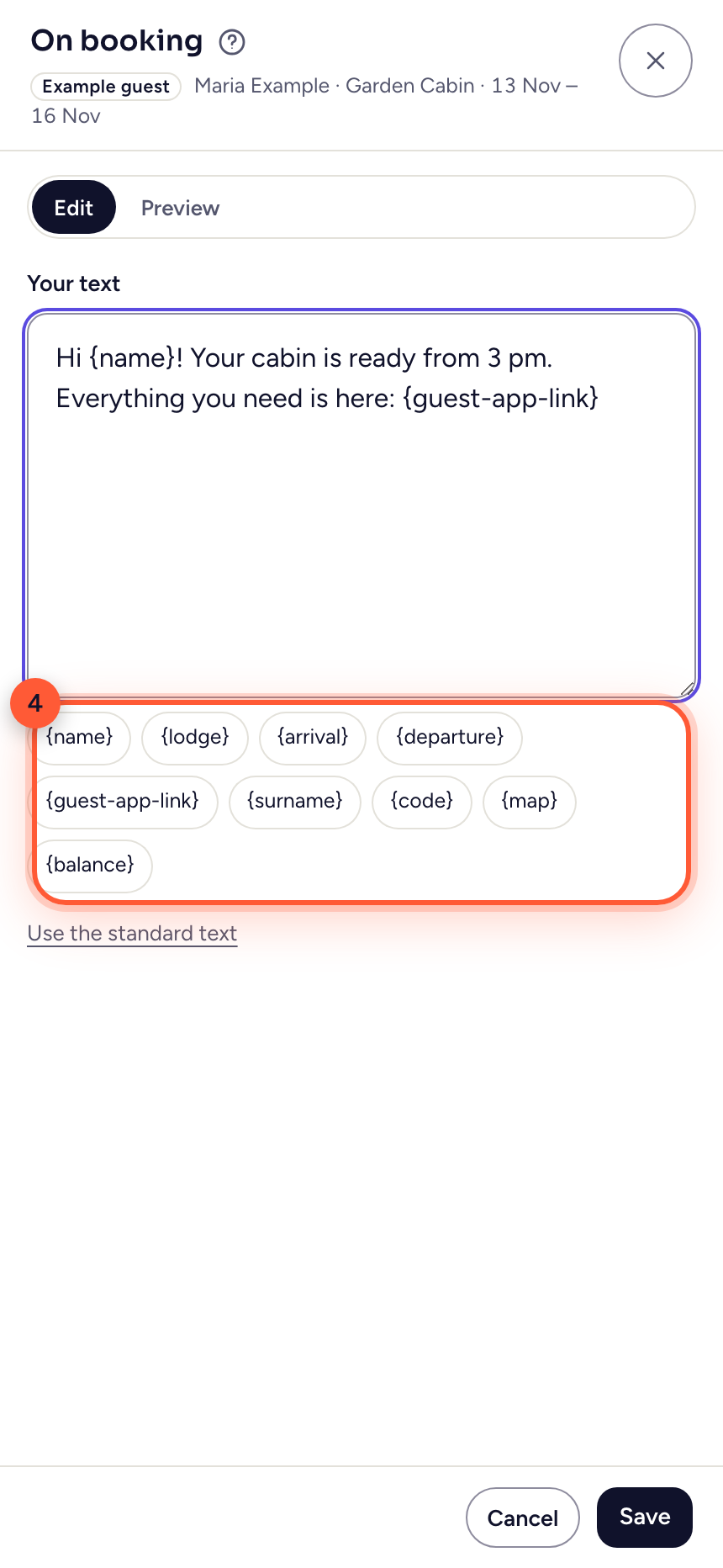 Step 4
Write your message and tap the chips to drop in the guest’s details. “Preview” shows the result; then press “Save”.
Whyname, arrival, guest-app-link and the rest go in where your cursor is and fill in for each guest. Your text is used exactly as written in email and channel chats — WhatsApp keeps Meta’s approved template: Meta’s rule, not ours.
Connect your WhatsApp
Your lodge’s own WhatsApp number in the panel: conversations, automatic messages and replies, all in one place.
 Step 1
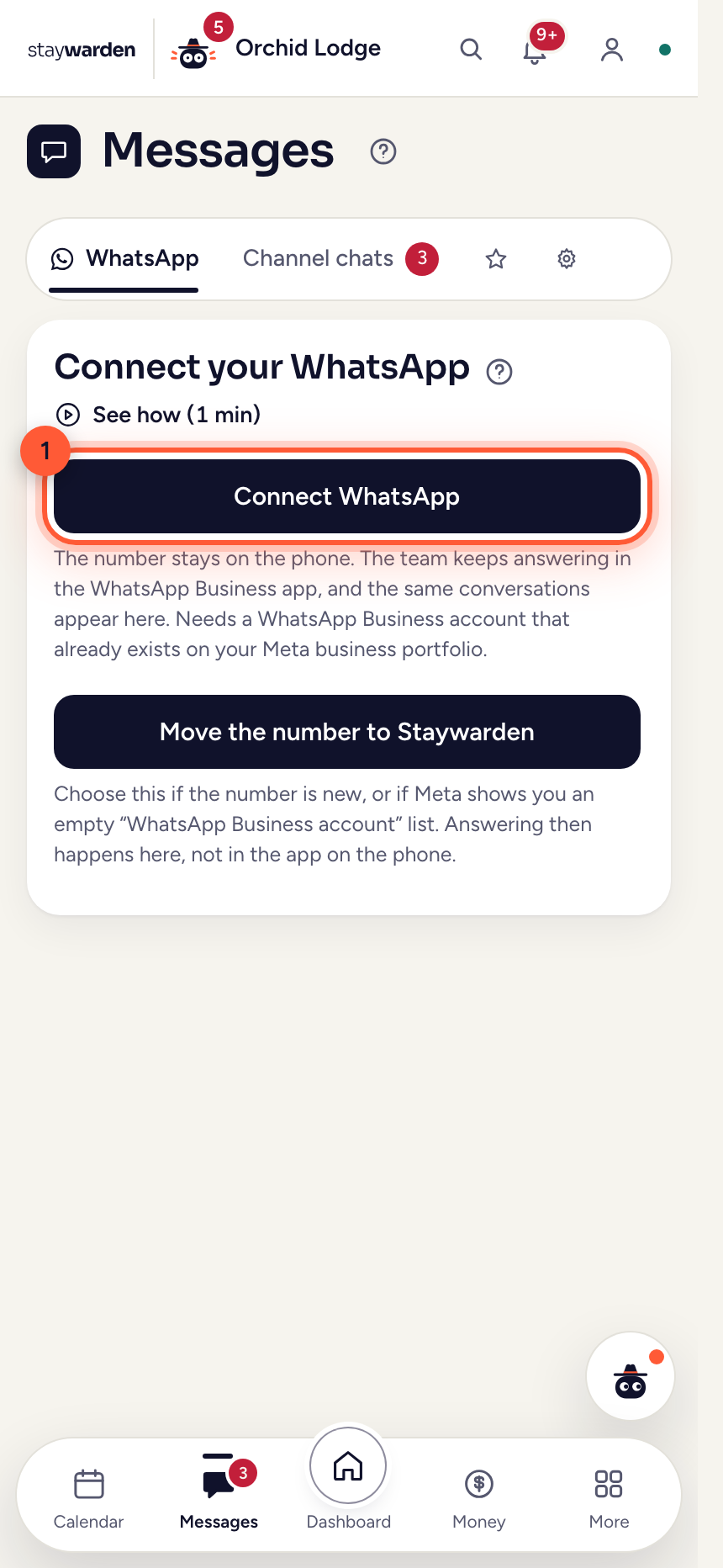
On the Messages tab, press “Connect WhatsApp”. A Meta window opens; follow its steps.
WhyThe number stays on your phone: your team keeps answering in the WhatsApp Business app, and the same conversations show here. Meta may ask you to scan a QR code with WhatsApp Business. If nothing opens, allow pop-ups and try again.
 Step 2
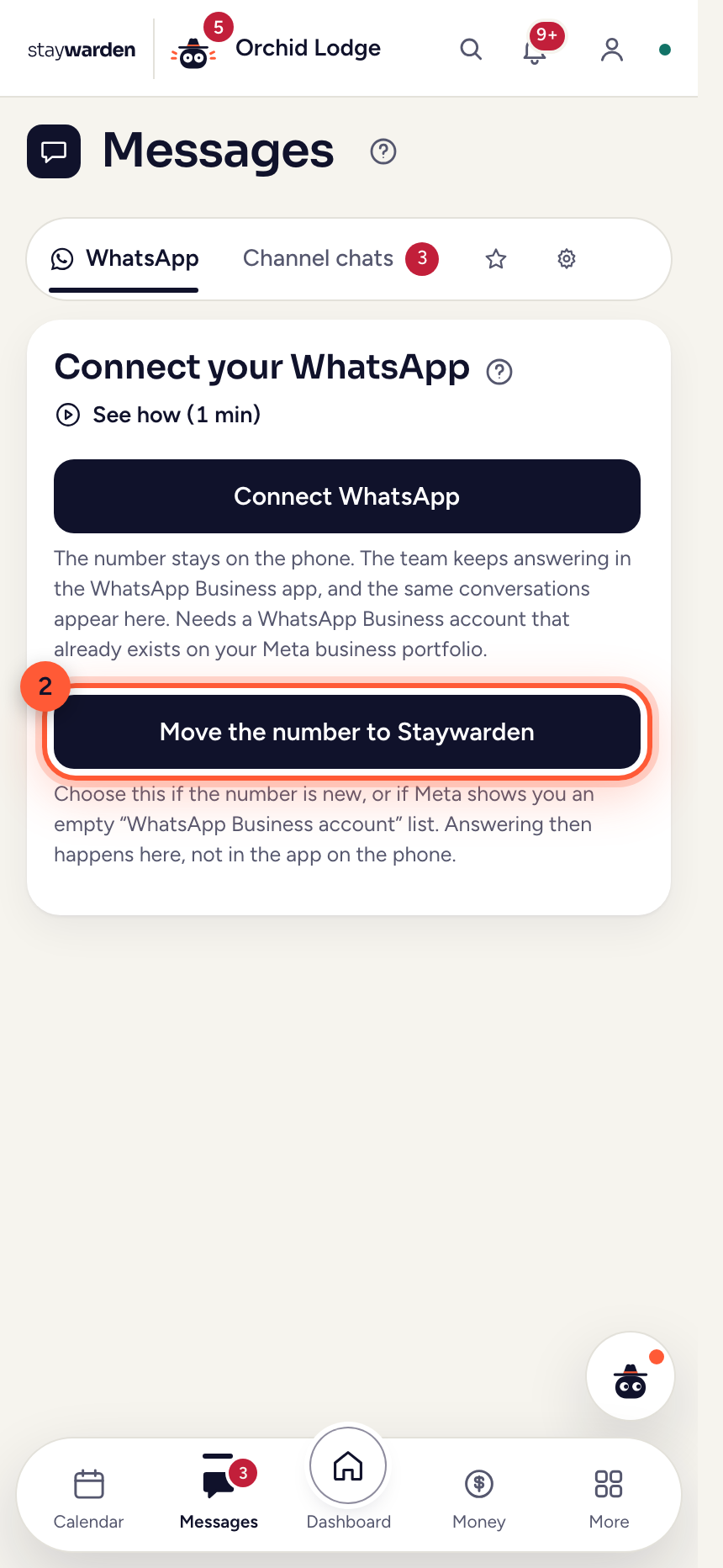
A new number, or Meta shows an empty account list? Use “Move the number to Staywarden”.
WhyThat way the number lives in Staywarden, and answering happens here instead of in the phone app. It needs no WhatsApp Business account beforehand.
Alerts: what reaches your phone
A booking, a cancellation, a payment, a task for you — each person on the team chooses what reaches them, where and when.
 Step 1
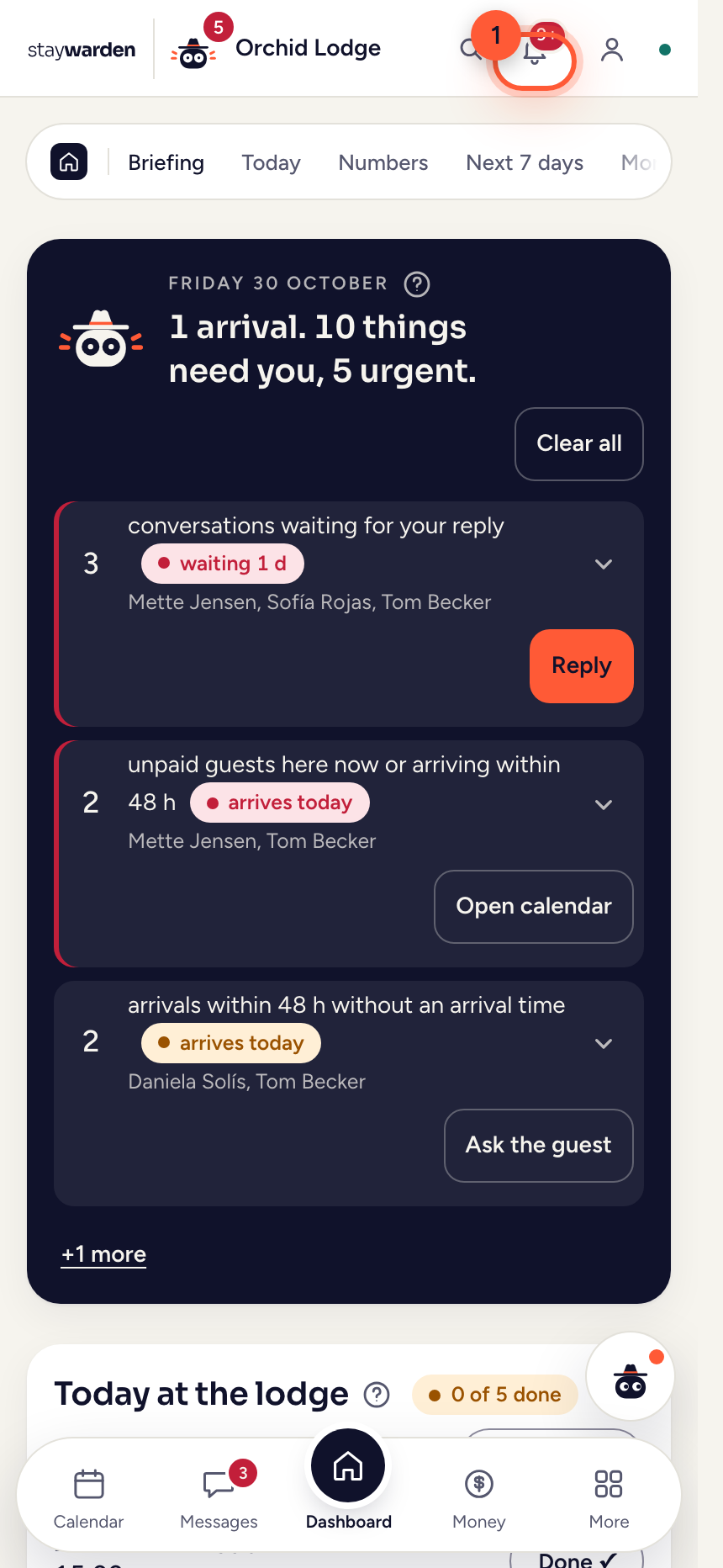
The bell at the top shows everything that happened, newest first. “Alert settings” at the bottom is where you choose what reaches you.
WhyThe bell is the panel’s own list, so nothing is lost while your phone is off. Tap an alert to go straight to where you deal with it — a booking opens on its own, from the bell and from your phone.
 Step 2
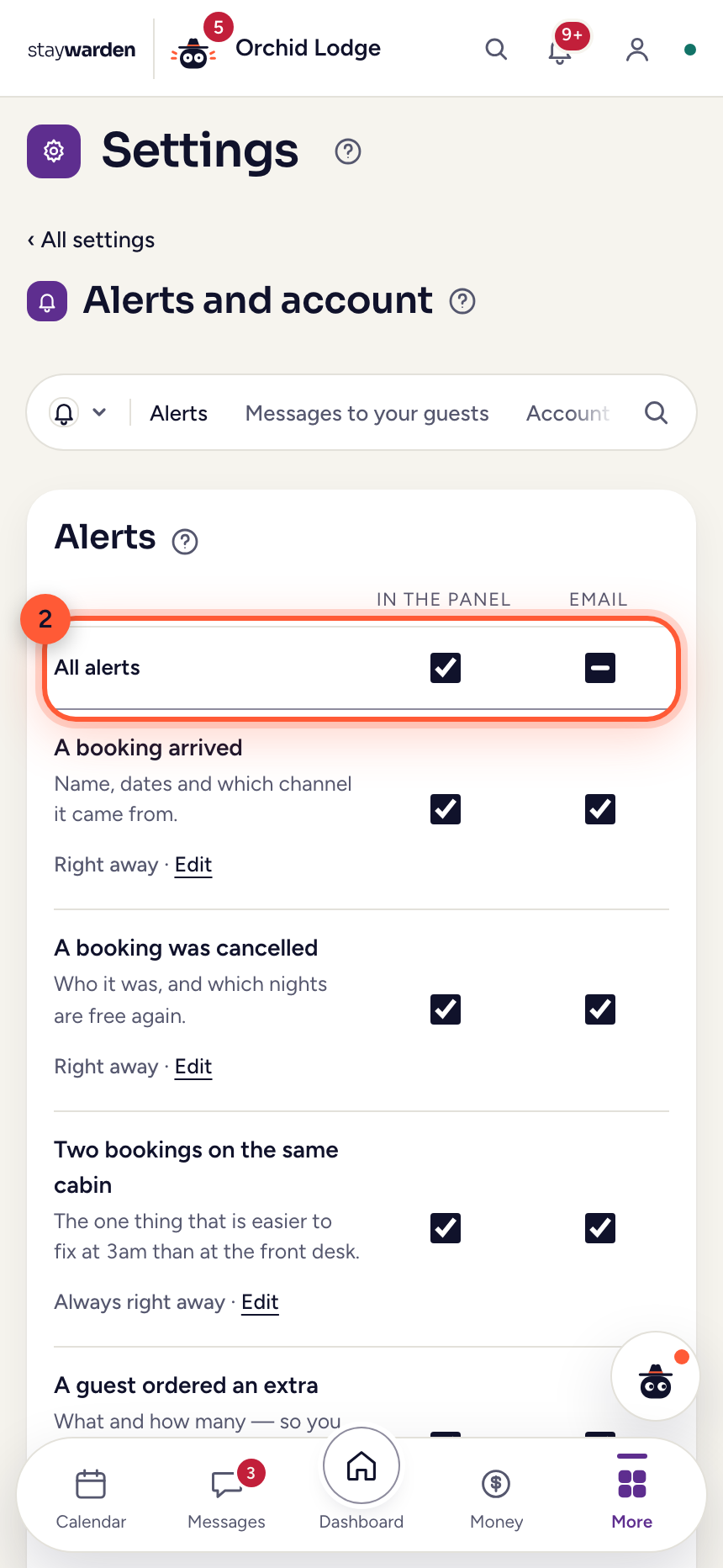
In Settings › Alerts, each alert has its own row. Choose where it reaches you: in the panel, by email — and on your phone, once you’ve pressed “Turn on alerts on this device” at the top and allowed it.
WhyEveryone chooses for themselves — the owner wants every booking, the accountant only a rejected document. On an iPhone, alerts come through the Staywarden app from the App Store. “Send a test” shows that it arrives, in the language you use the panel in.
 Step 3
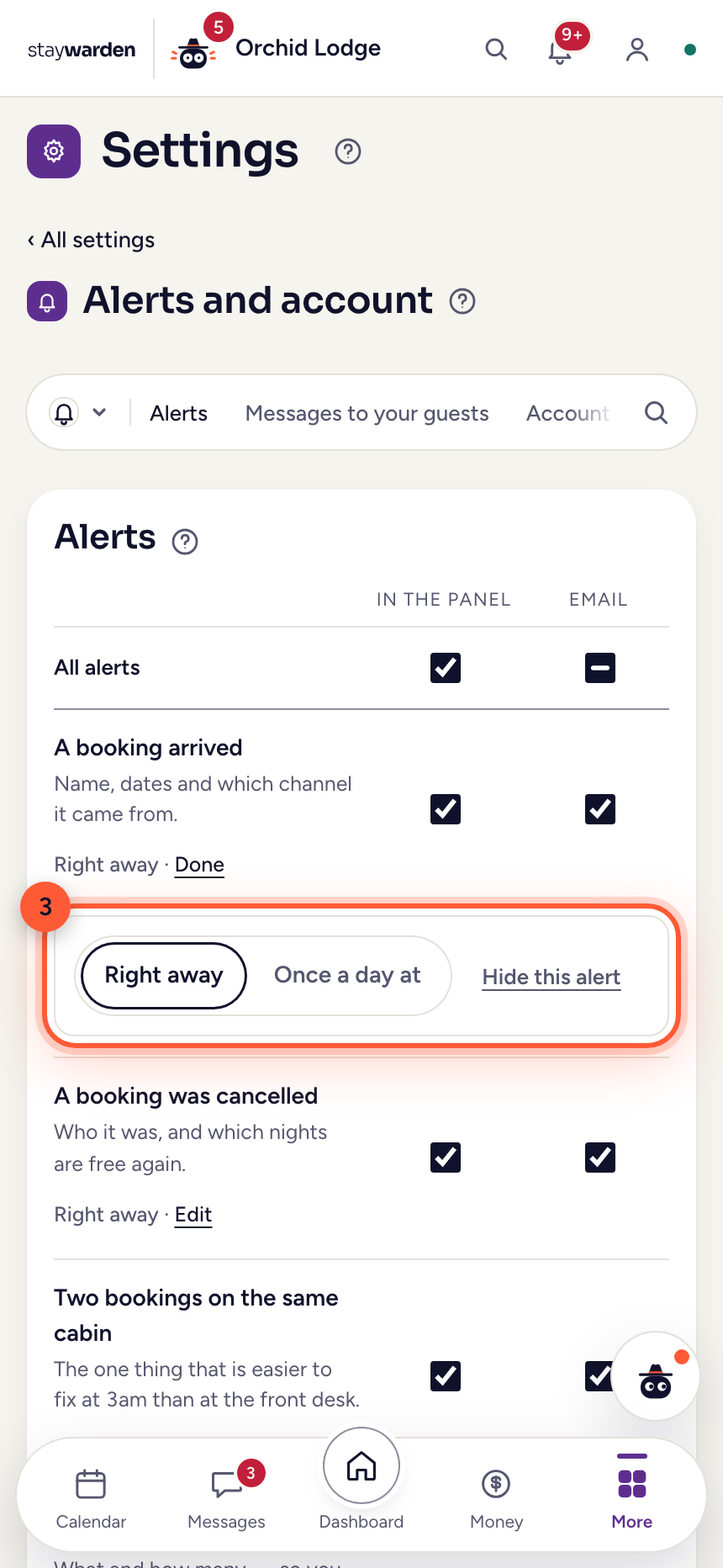
Tap “Right away · Edit” under an alert: get it right away or once a day at a time you pick, or “Hide this alert” if you never use it.
WhyFewer pings, the same information. A double-booking alert always comes right away: it’s easier to fix at 3 a.m. than at the front desk. Hidden alerts wait at the bottom of the list and come back with “Show”.
 Step 4
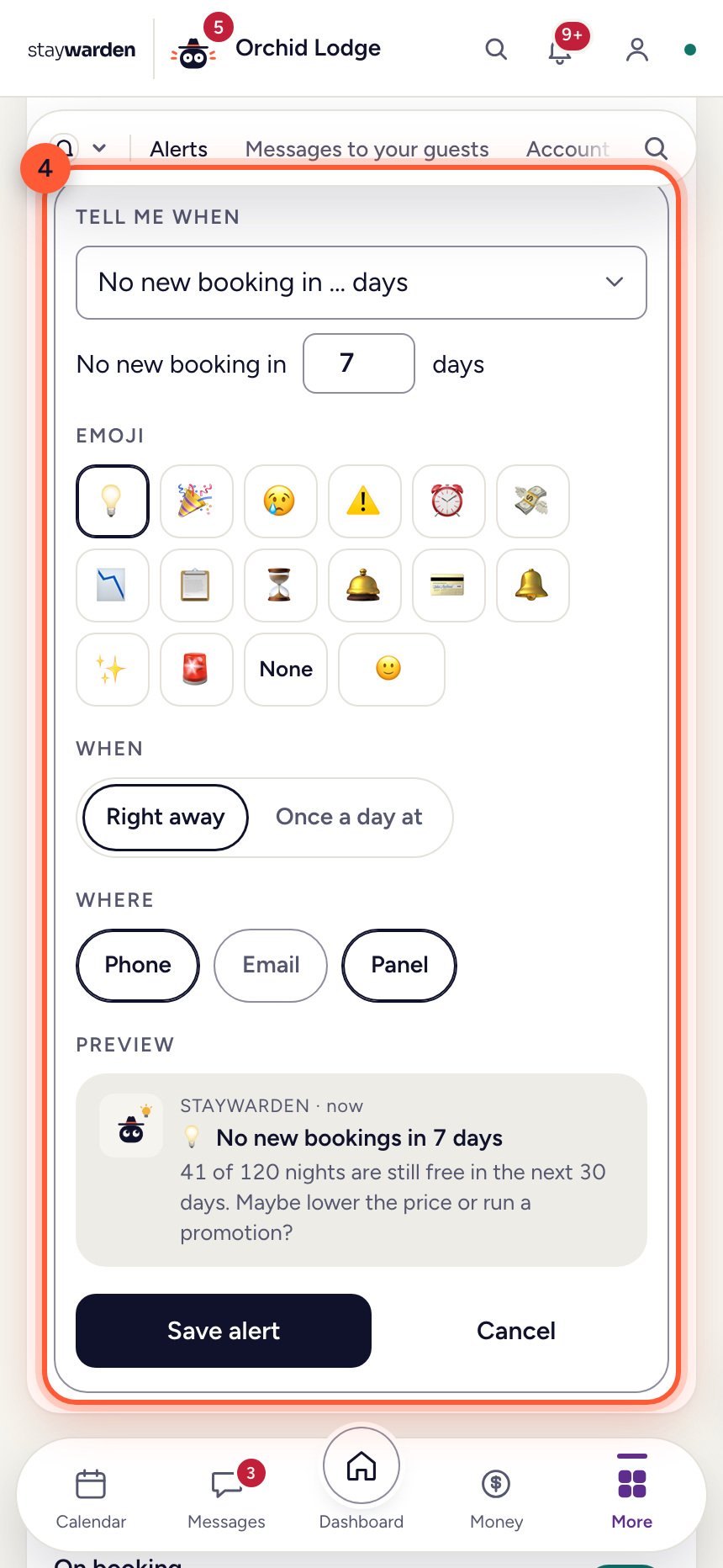
“+ Create your own alert” builds one from a sentence: what should happen, an emoji, when, and where it reaches you. The preview shows it before you save.
WhyFor the things only you keep an eye on — a week without a new booking, low occupancy ahead, a guest arriving unpaid, a task assigned to you. The Warden adds its own ideas and deadlines, like the VAT return on the 15th.
Your own website
A page for guests who have not booked yet — photos of every cabin, your story, how to get here — from a ready-made template, in Spanish and English.
 Step 1
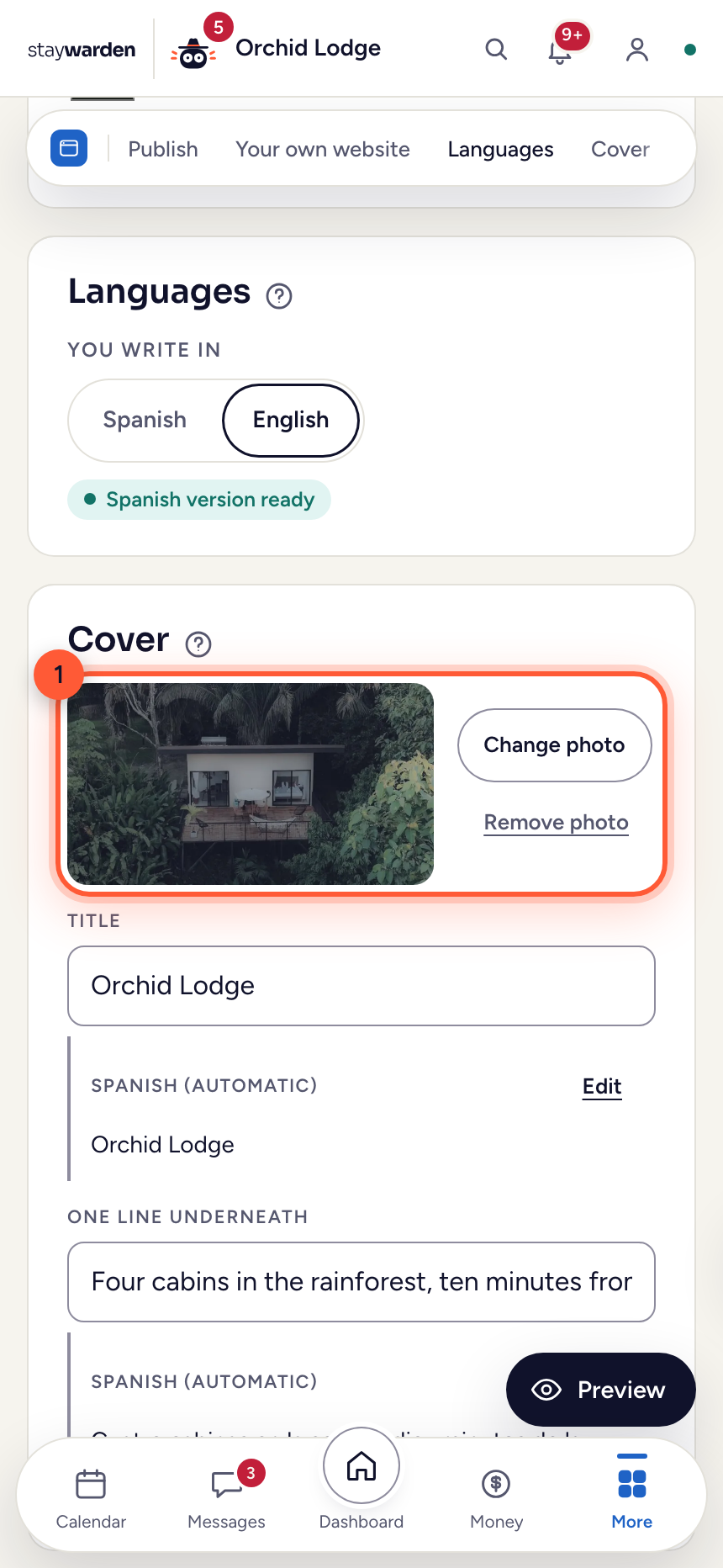
On the Website tab, under “Cover”, upload the big photo and write the title and the line underneath. Tell your story under “The story”.
WhyThe design is done for you — you just bring the words and the pictures. No design choices to get wrong.
 Step 2
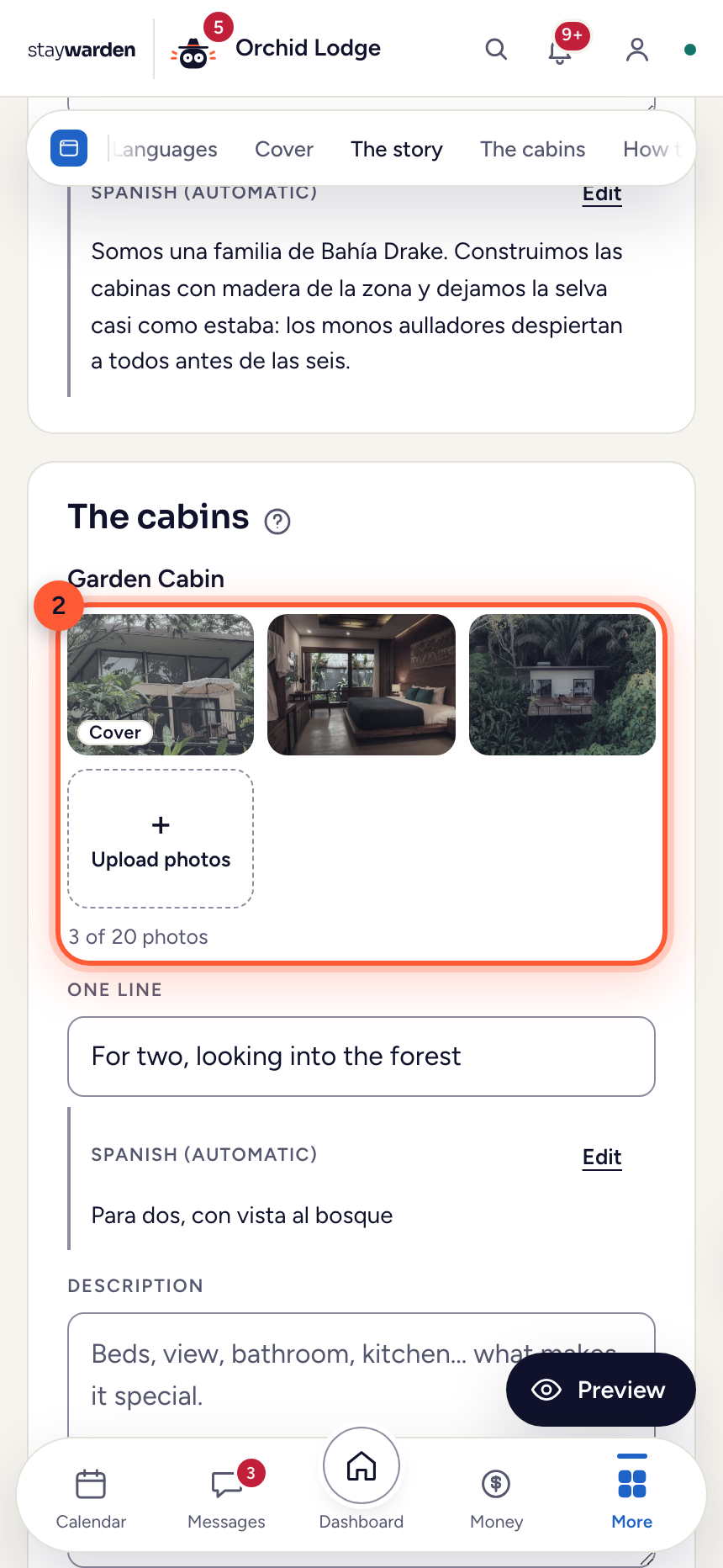
Under “The cabins”, upload photos for each cabin — up to 20. The first one is the cover; tap a photo to move it earlier or later, or to make it the cover.
WhyEvery cabin gets its own page with its gallery, a one-line summary and its description. Your cabins and rates are already there — pulled from what Staywarden knows.
 Step 3
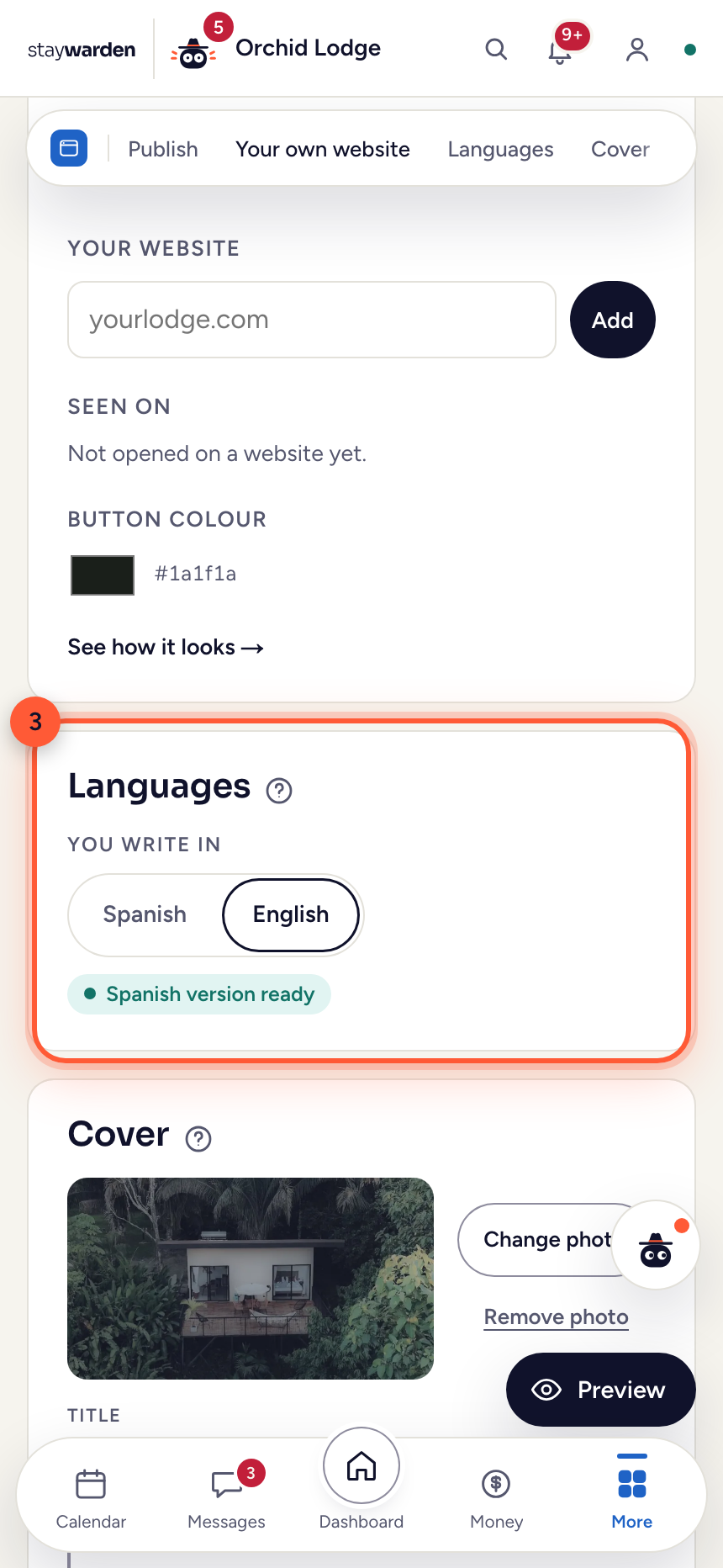
Under “Languages”, choose the language you write in. The other one is translated for you: “✓ … version ready” means it is done.
WhyGuests read the page in their own language. Under each text you see the automatic translation, and “Edit” lets you write it yourself.
 Step 4
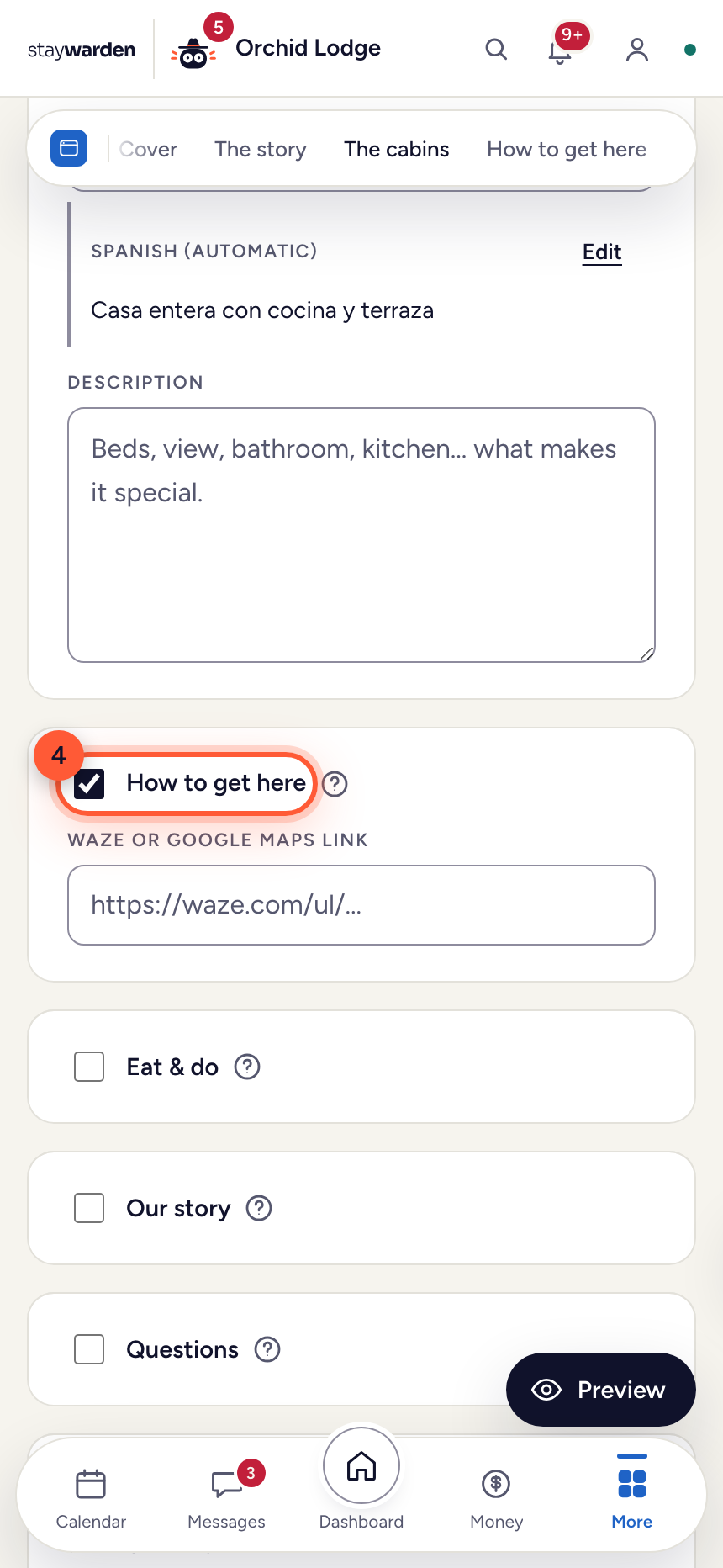
Turn on the sections you want: How to get here, Eat & do, Our story, Questions, Contact.
WhyEach section is a small form. The WhatsApp number you add under Contact is the one your guests will message — and the Wi-Fi code lives on the Guest app tab, for booked guests only, never on the public page.
 Step 5
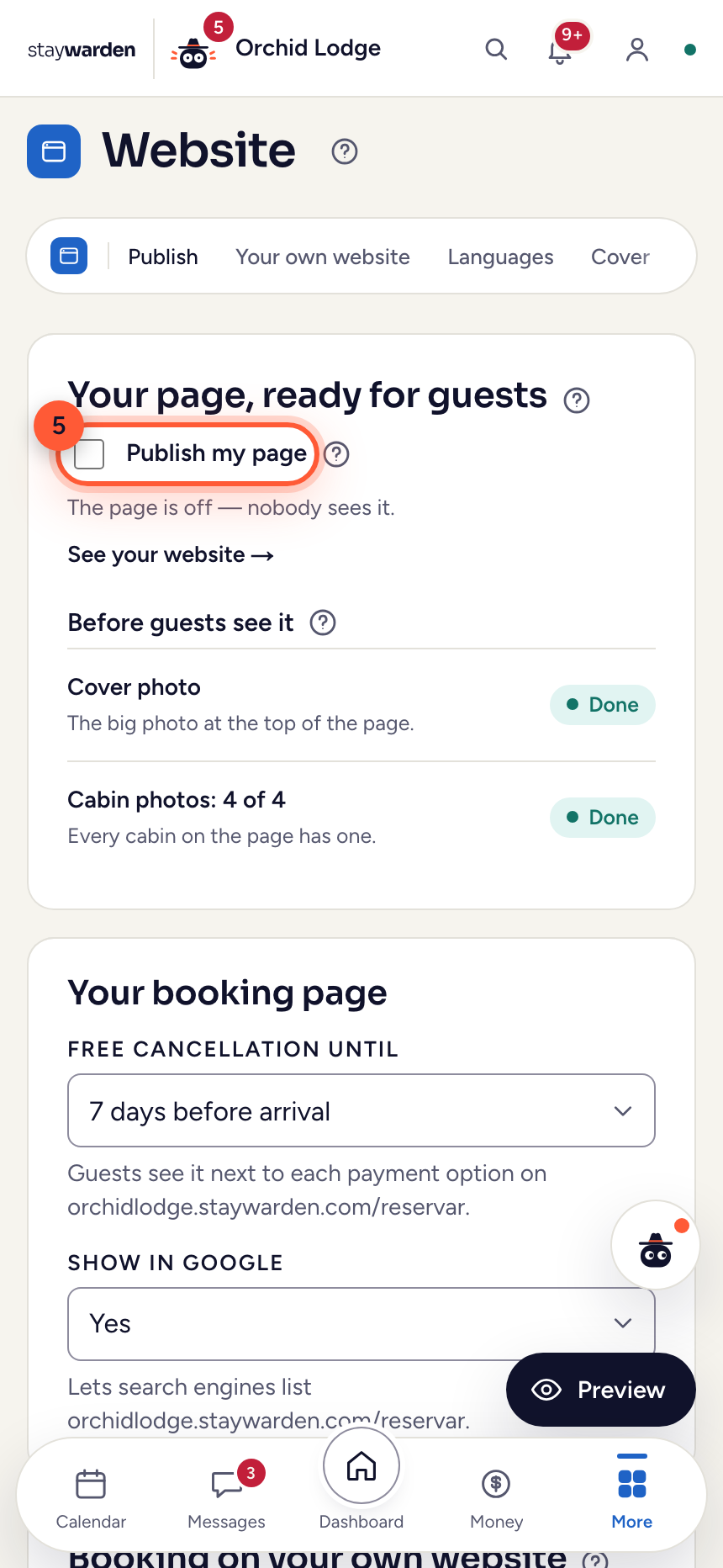
When everything under “Before guests see it” is done, turn on “Publish my page”.
WhyIt stays off until you say so, so a half-finished page never goes live. Once it’s on, your web address appears right underneath — and “See your website” shows the page as a guest will see it, even before it’s live.
Set your prices and seasons
A price per cabin, seasons on top — and nothing changes for guests until you publish.
 Step 1
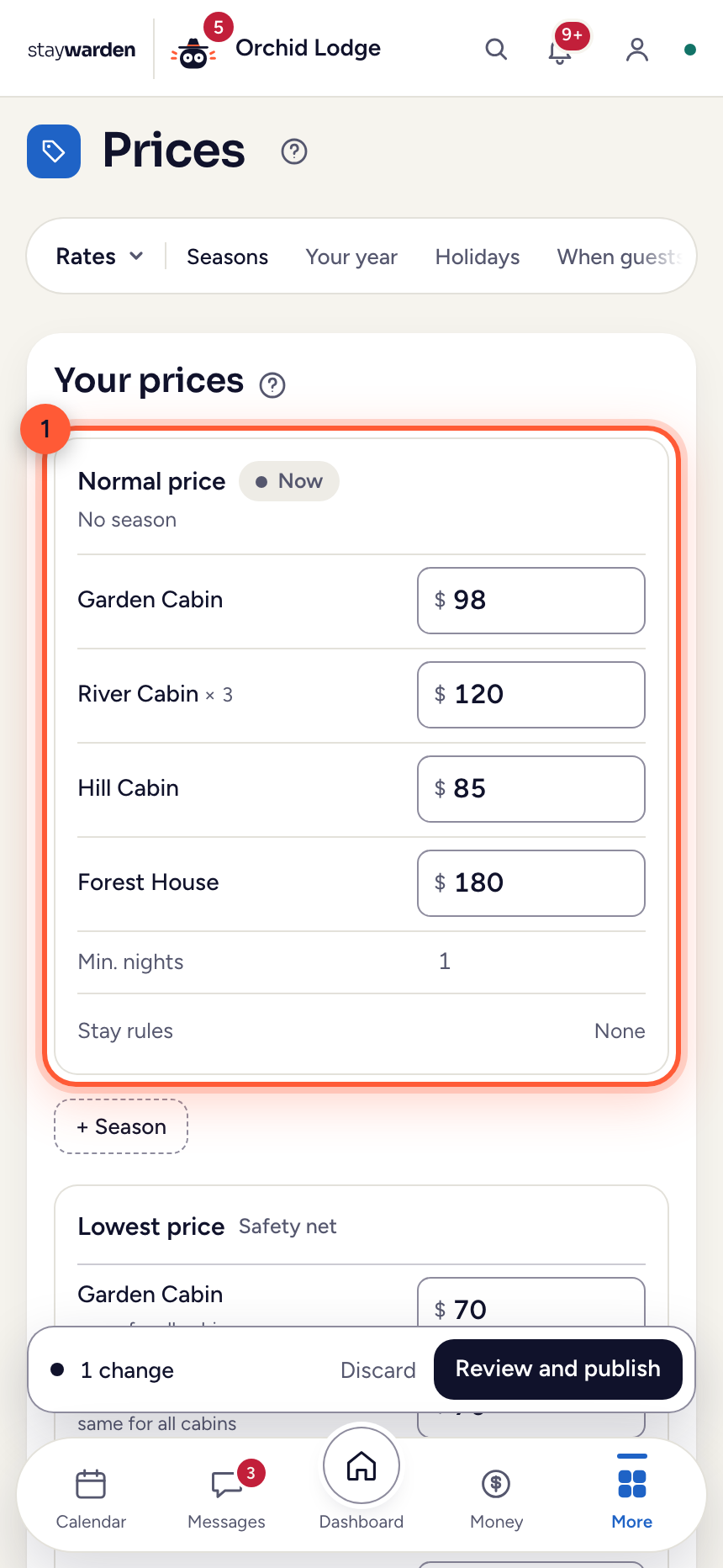
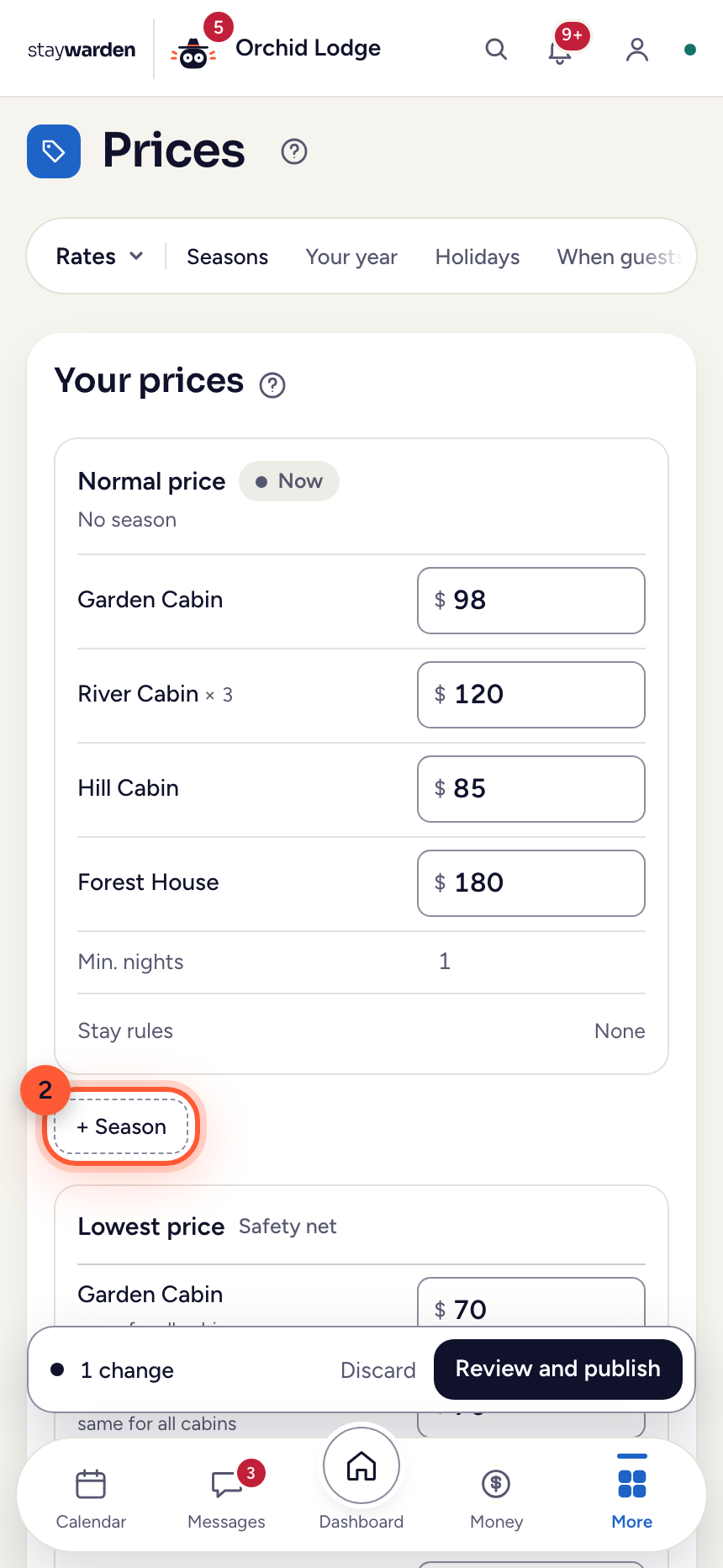
On the Prices tab, under “Rates”, type each cabin’s normal price: what a night costs when no season applies.
WhyBelow it sits your lowest price — the floor no discount code can push a night below.
 Step 2
Press “+ Season” for high season, Christmas or Semana Santa, with its own dates, prices and minimum nights.
WhyWhere two seasons overlap, the shorter one wins, so a Christmas week inside high season simply works. The year wheel below shows what is booked, what is closed and which holidays are coming.
 Step 3
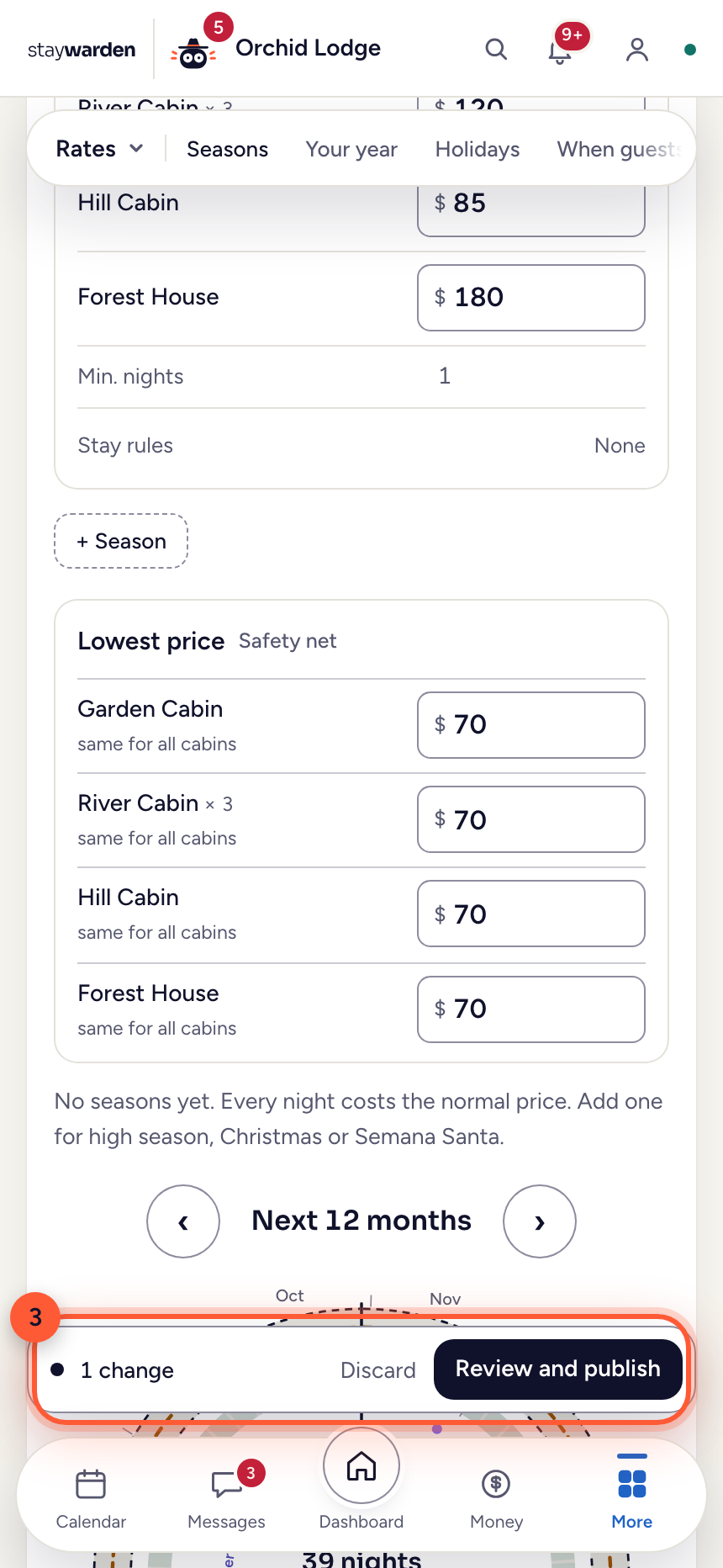
Every change waits in the bar at the bottom. Press “Review and publish” to see exactly what changes for guests, then publish.
WhyNothing goes out half-typed: a price you are still changing never reaches Booking.com. When you publish, the new prices go to your channels and your own booking page at once.
Discount codes
For a contest or a promotion — a code the guest types when paying by card on your booking page or in your guest app. Discount codes come with the Complete plan.
 Step 1
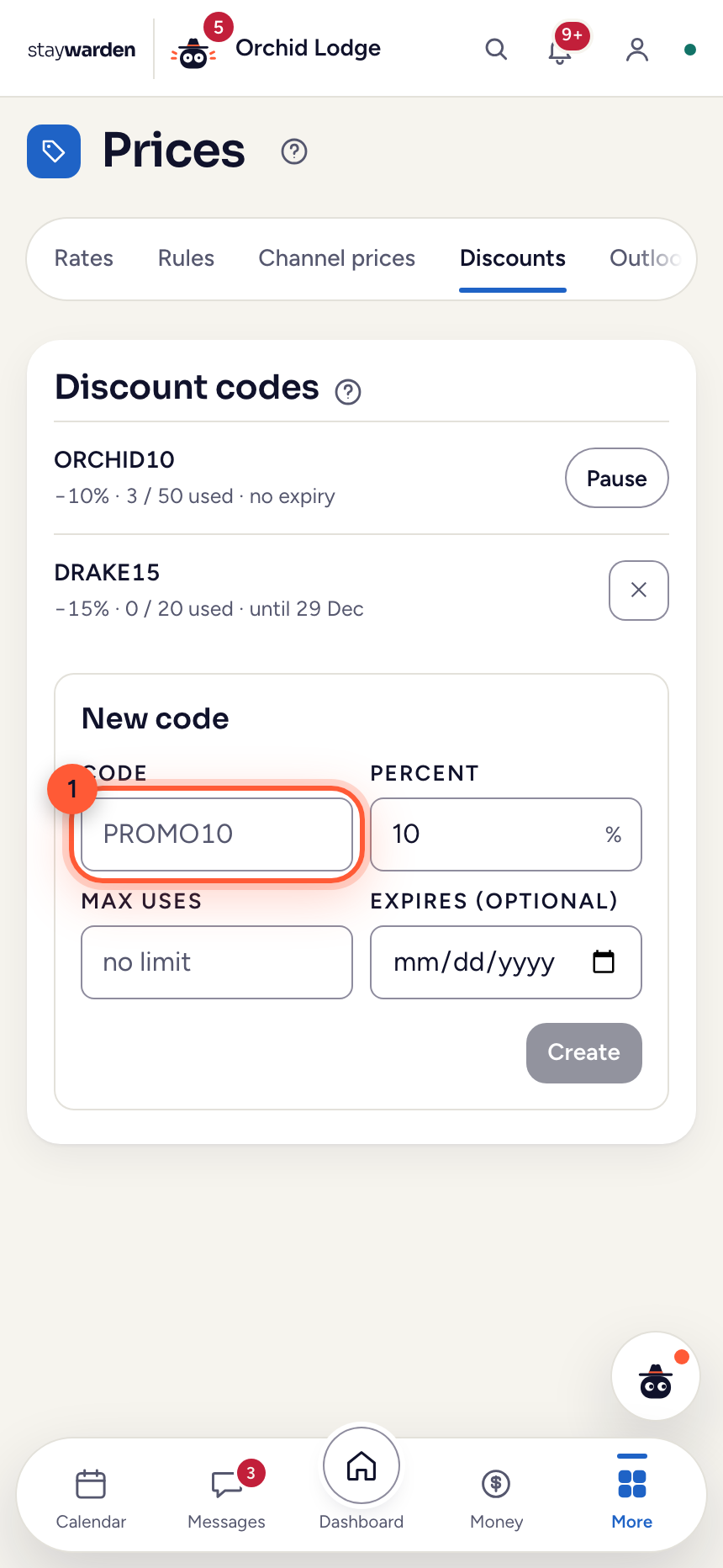
On the Prices tab, open “Discounts” and type a code and a percentage.
WhyThe discount is calculated on the server, never in the guest’s browser — so a code can’t be faked by editing the page.
 Step 2
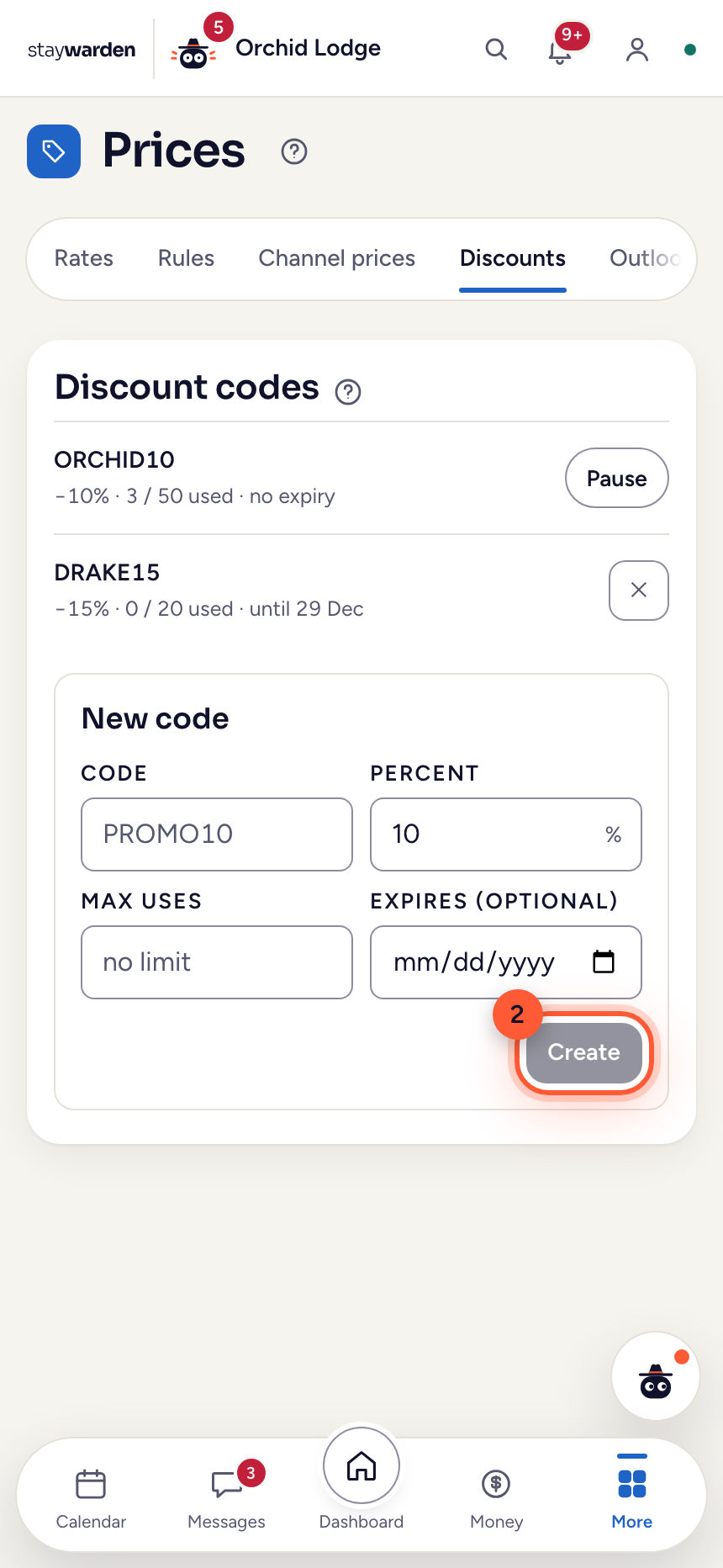
Press “Create”. Set a maximum number of uses or an expiry date if you like.
WhyA use counts only once the payment is actually approved — opening checkout doesn’t use up the code. A code applies to the stay, never to the extras, and never takes a night below your lowest price. Used codes can be paused but not deleted, so your payment history always adds up.
Your numbers on Analytics
Revenue, occupancy, your nightly rate and what’s coming up — as cards you arrange yourself.
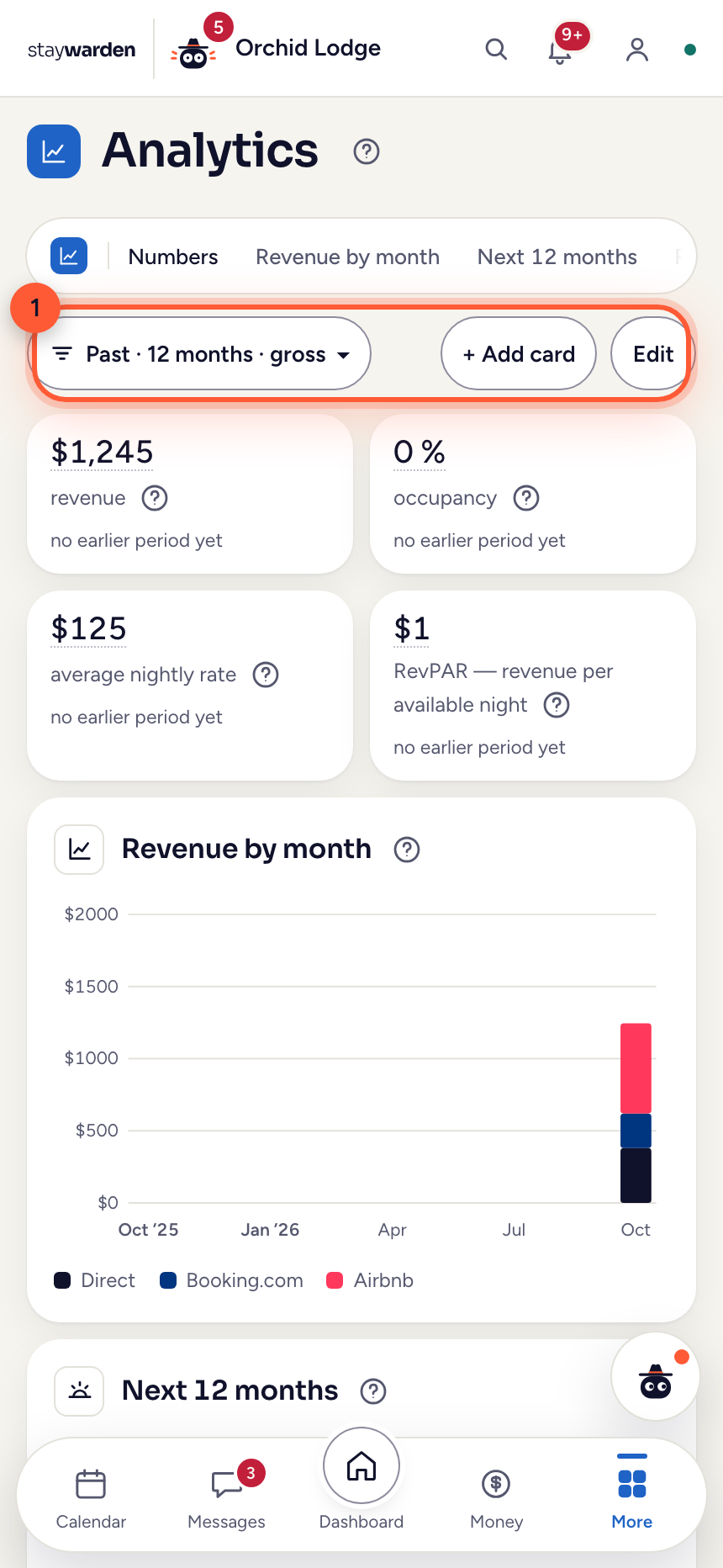 Step 1
On the Analytics tab, choose the period at the top — 30 days, 90 days, 12 months or your own dates — and filter by cabin or channel.
WhyEvery card follows the same filter, so the numbers always answer the same question. “After commission” shows what you actually keep from each channel.
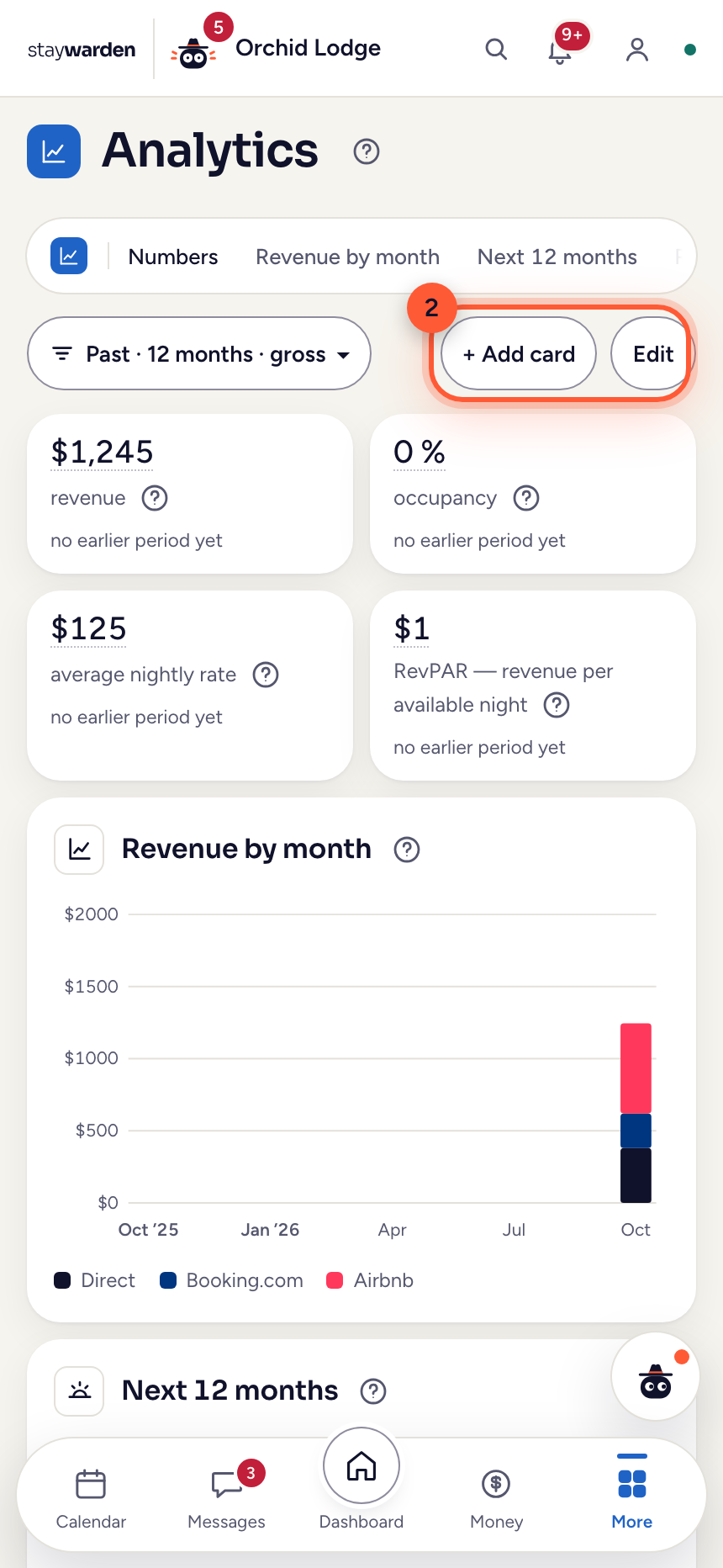 Step 2
“+ Add card” adds more cards and charts; “Edit” removes them and changes their order.
WhyEach person arranges their own board — the owner’s cards don’t move the manager’s. Amounts show only to people with access to Money.
Expenses with receipts attached
Upload the invoice and the expense fills itself in — and the month’s result updates.
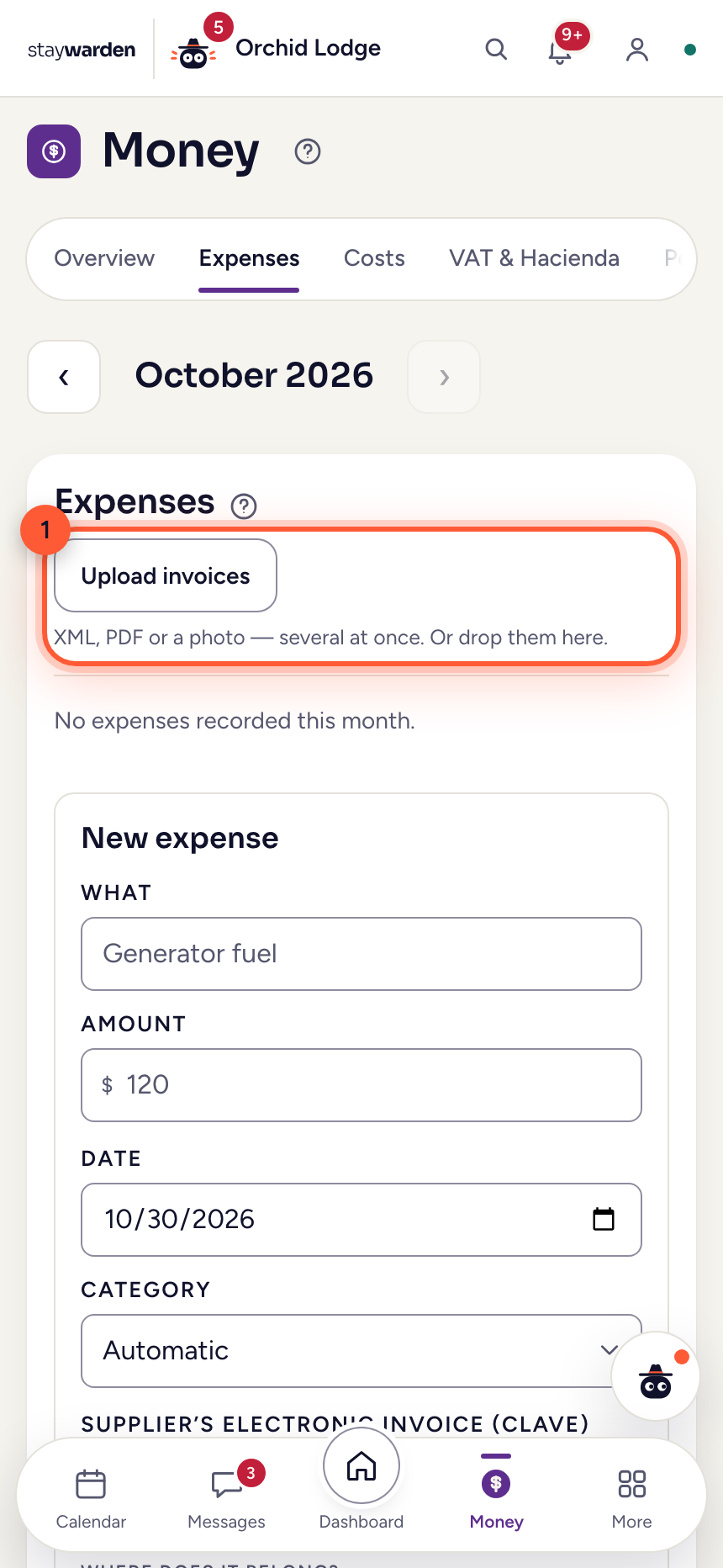 Step 1
On the Money tab, open “Expenses” and press “Upload invoices”: a PDF or a photo — several at once, or drop them on the box.
WhyStaywarden reads the supplier, the amount and the VAT, marks anything it is unsure of for you to check, and keeps the file with the expense for your accountant. The same invoice twice is caught.
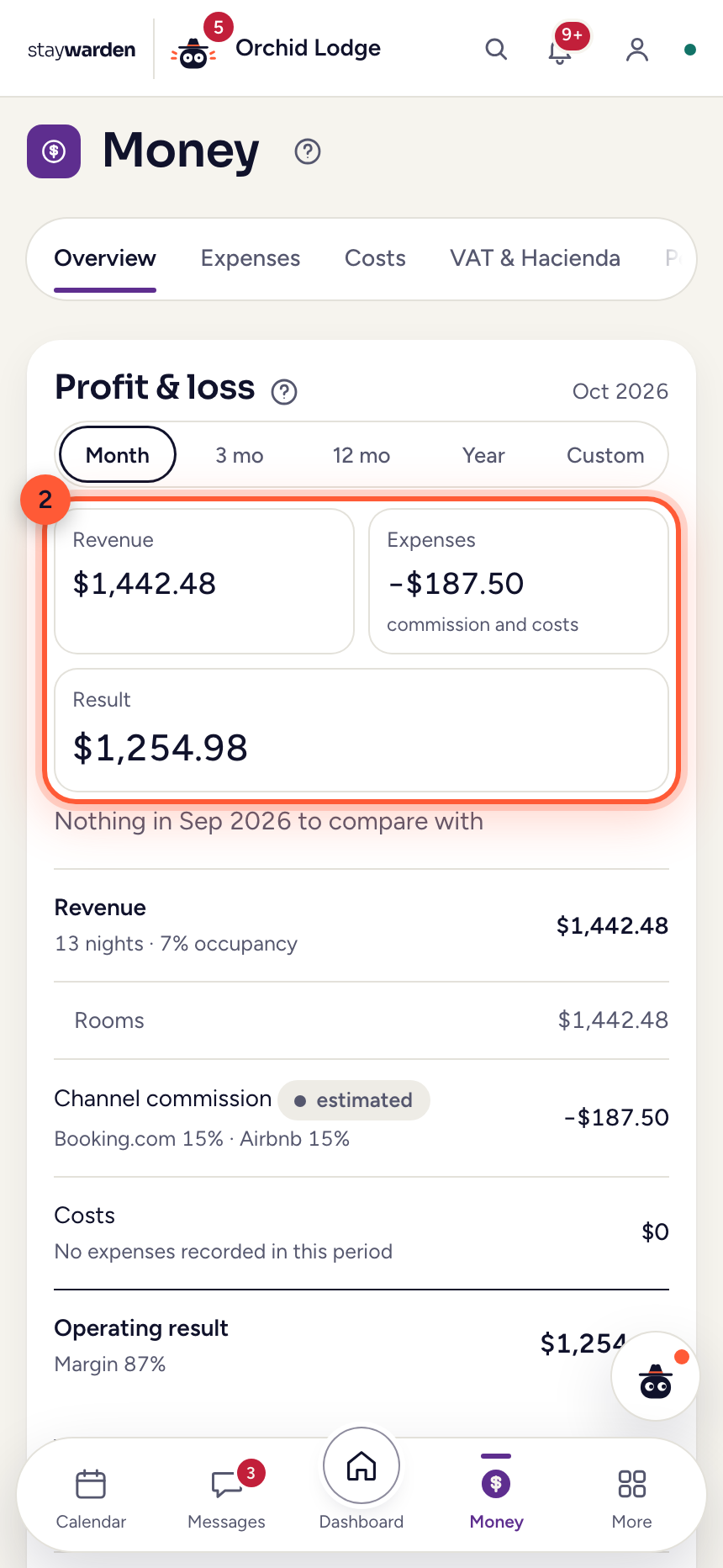 Step 2
Under “Overview”, the profit and loss statement shows revenue, channel commission, costs and the net result for the period you choose.
WhyOne definition sits behind every number in the panel. Below it, the VAT for the period is worked out for you.
Bring your bookings in
The first step, before any channel: the nights you already sold come into Staywarden, so none of them is sold twice.
 Step 1
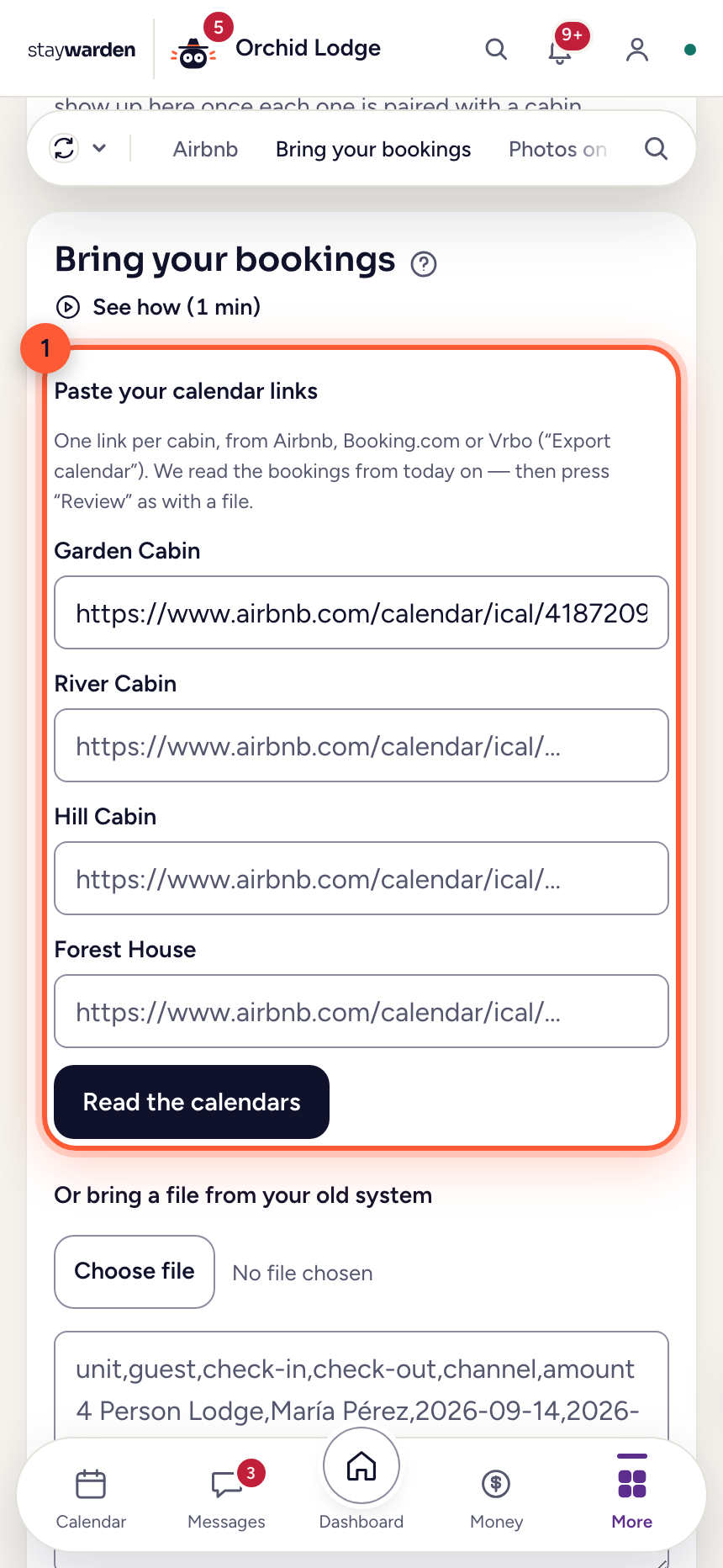
In Settings › Channels, under “Bring your bookings”, paste the calendar link from Airbnb or Booking.com next to each cabin and press “Read the calendars”.
WhyIt’s the link every channel gives you to export your calendar. Airbnb: Calendar › Availability › Connect calendars › Export calendar. Booking.com: Rates & Availability › Sync calendars. Staywarden reads it once and builds the list; nothing is saved yet.
 Step 2
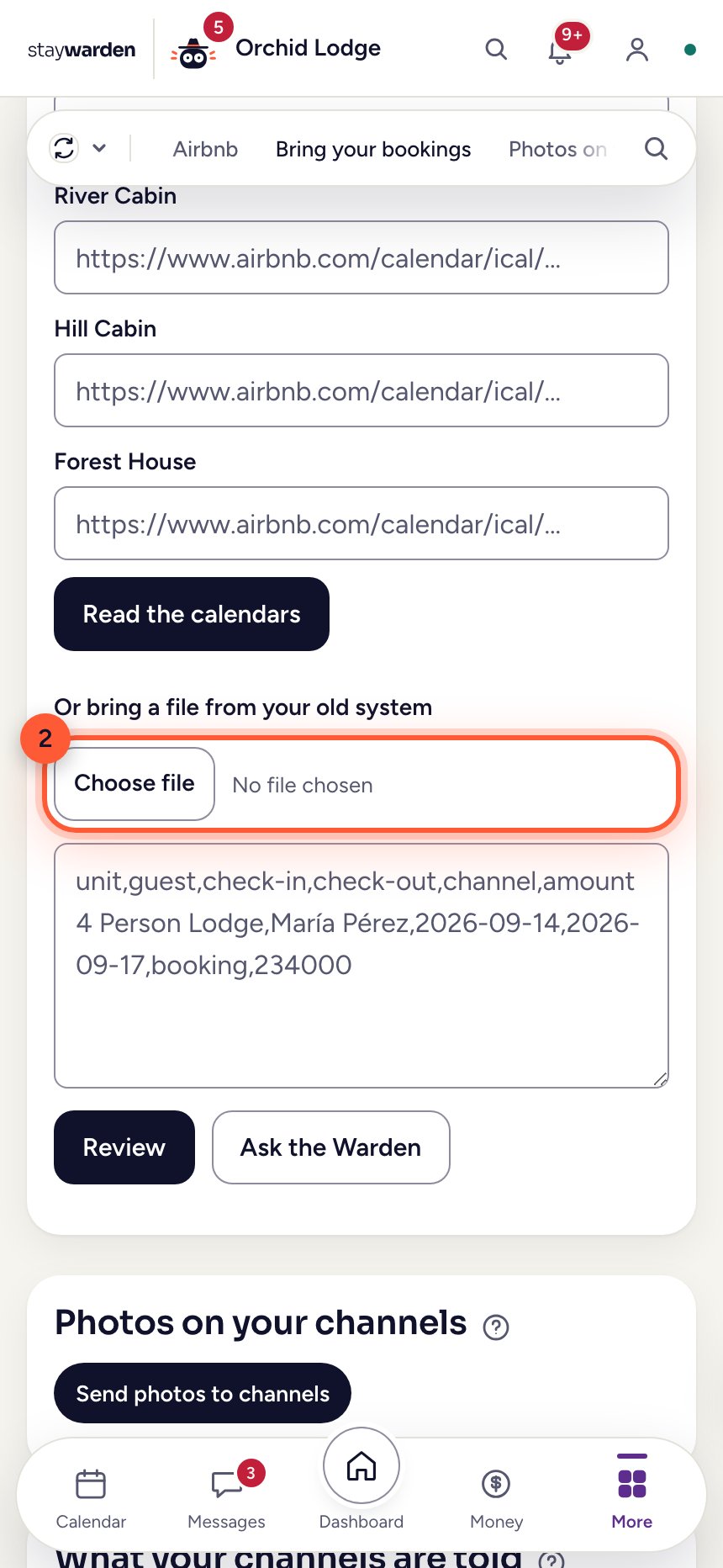
Coming from another system? Export your bookings as a file (CSV) and choose it here, or paste it into the box. Then press “Review”.
WhyColumn order doesn’t matter. If a cabin’s name doesn’t match, “Ask the Warden” suggests which of your cabins it is.
 Step 3
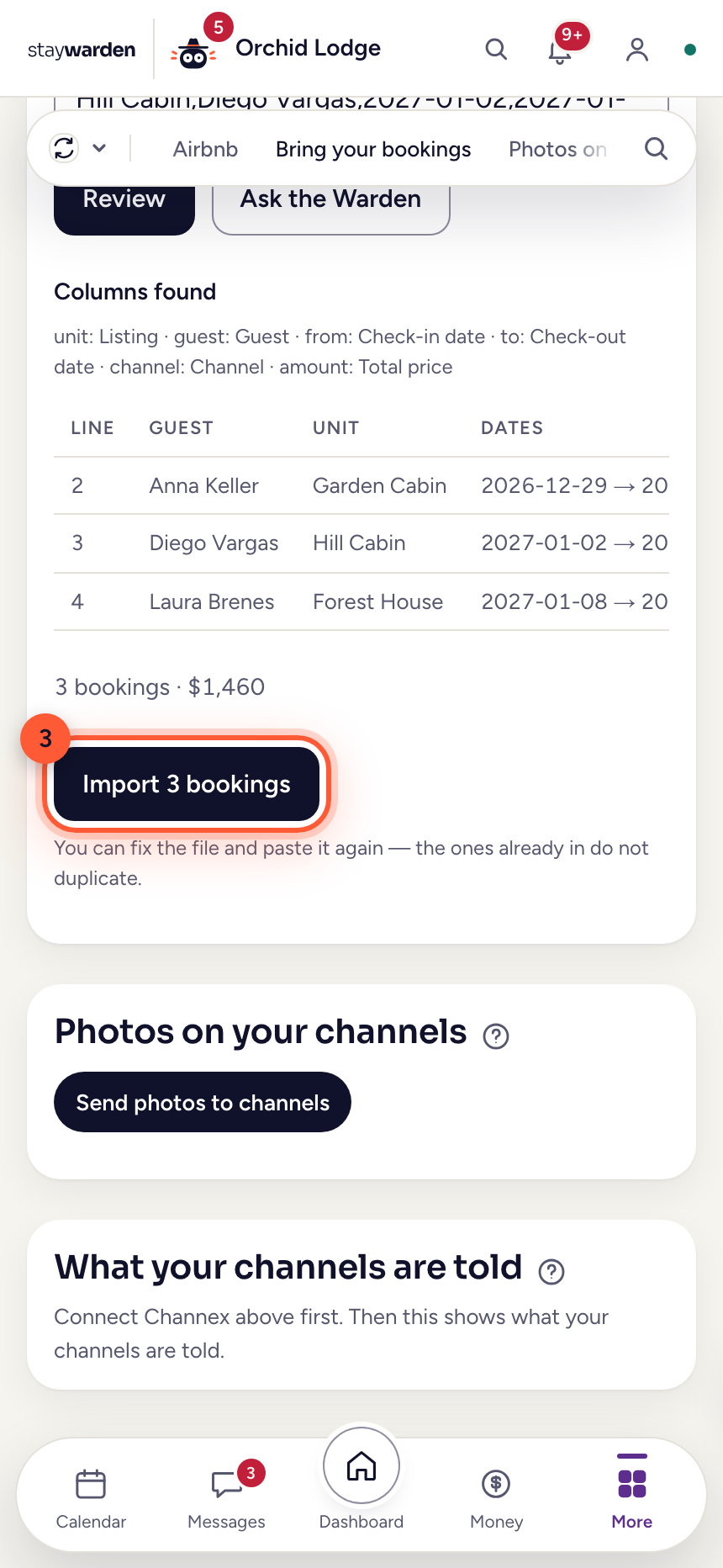
Read the report line by line, then press “Import N bookings”.
WhyOnly now is anything saved. A booking already in Staywarden is never imported twice, so you can fix the file and run it again. Once your bookings are in, your channels can be connected.
Connect Booking.com, Airbnb and Expedia
Connect your channels, so a booked night closes everywhere within minutes.
 Step 1
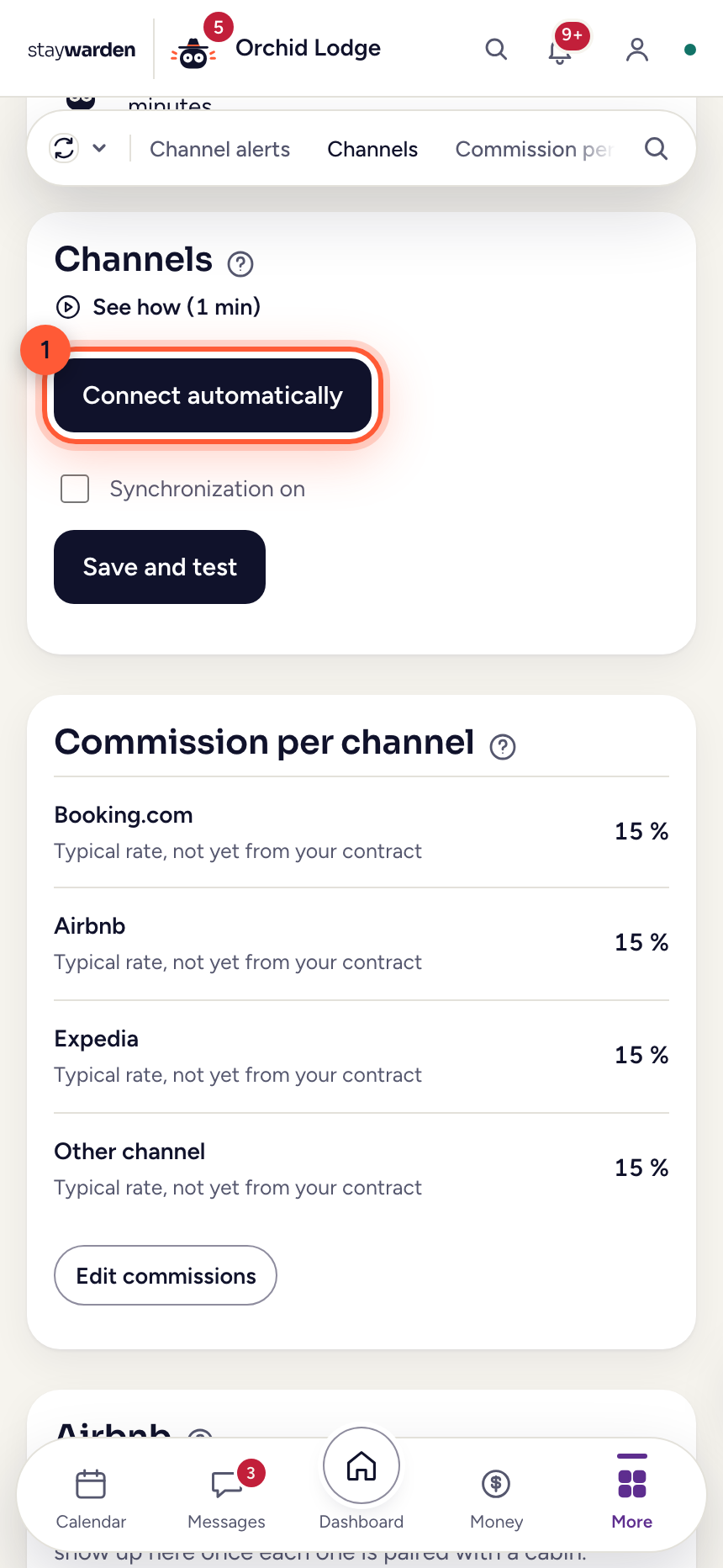
In Settings, open Channels and follow the guide for each channel.
WhyBring your existing bookings in FIRST — otherwise a channel would see every night as free. Then connect: Booking.com asks you to confirm Channex in your extranet; Airbnb connects with its official sign-in button; Expedia needs a provider change in Partner Central, which can take days. Once a channel is connected, “Push everything to channels” makes it live.
Take your data with you
Your whole lodge in one file — any day, no phone call.
 Step 1
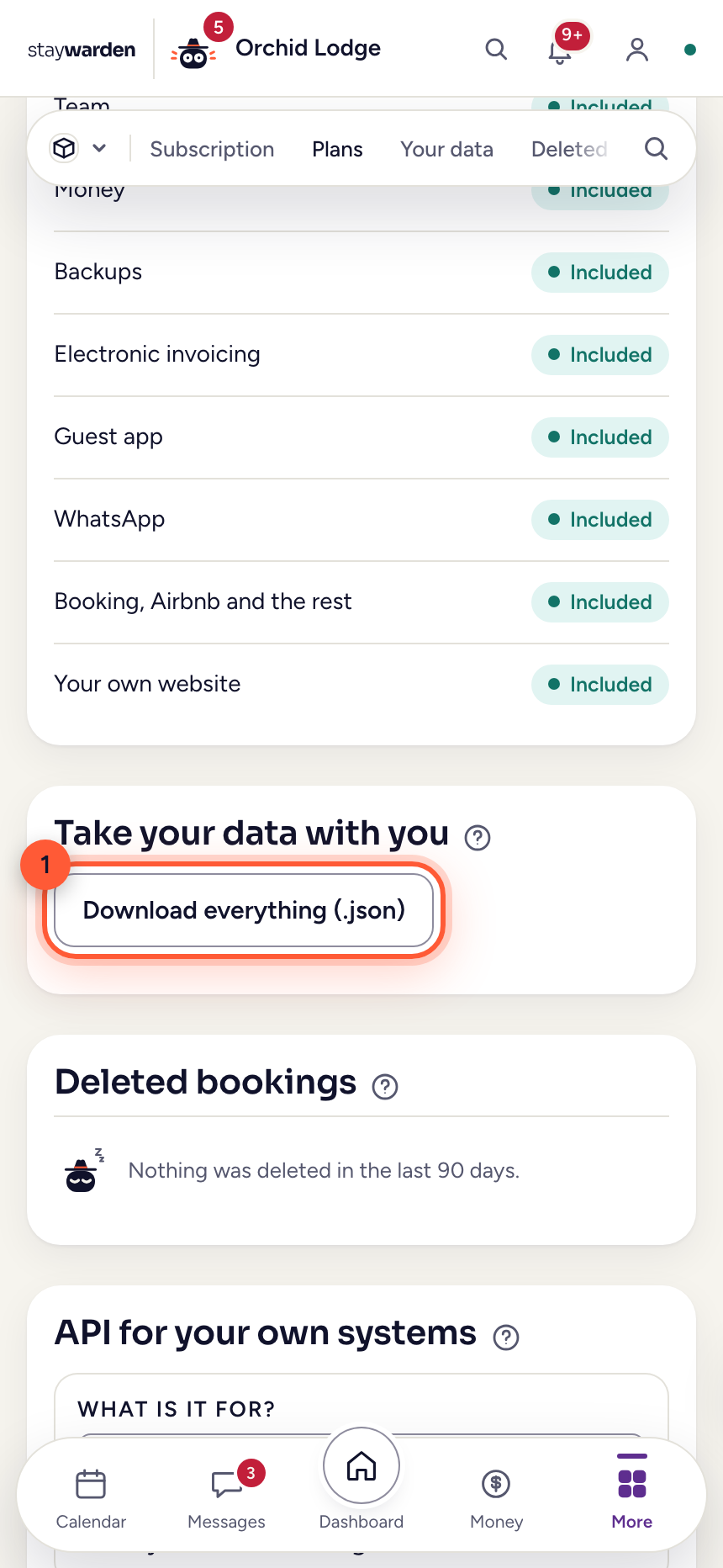
In Settings, open “Plan and data” and go to “Your data”. Under “Take your data with you”, press “Download everything (.json)”.
WhyBookings, payments, invoices, expenses, passports, reviews, discount codes, WhatsApp messages, deleted bookings and the configuration — all in one JSON file. The keys are left out: they are secrets, not data. The way out is a button, not a promise.
Ask the Warden
Your helper inside the panel. It knows your calendar, housekeeping, money, channels and invoices — and it does the work: ask it in your own words.
 Step 1
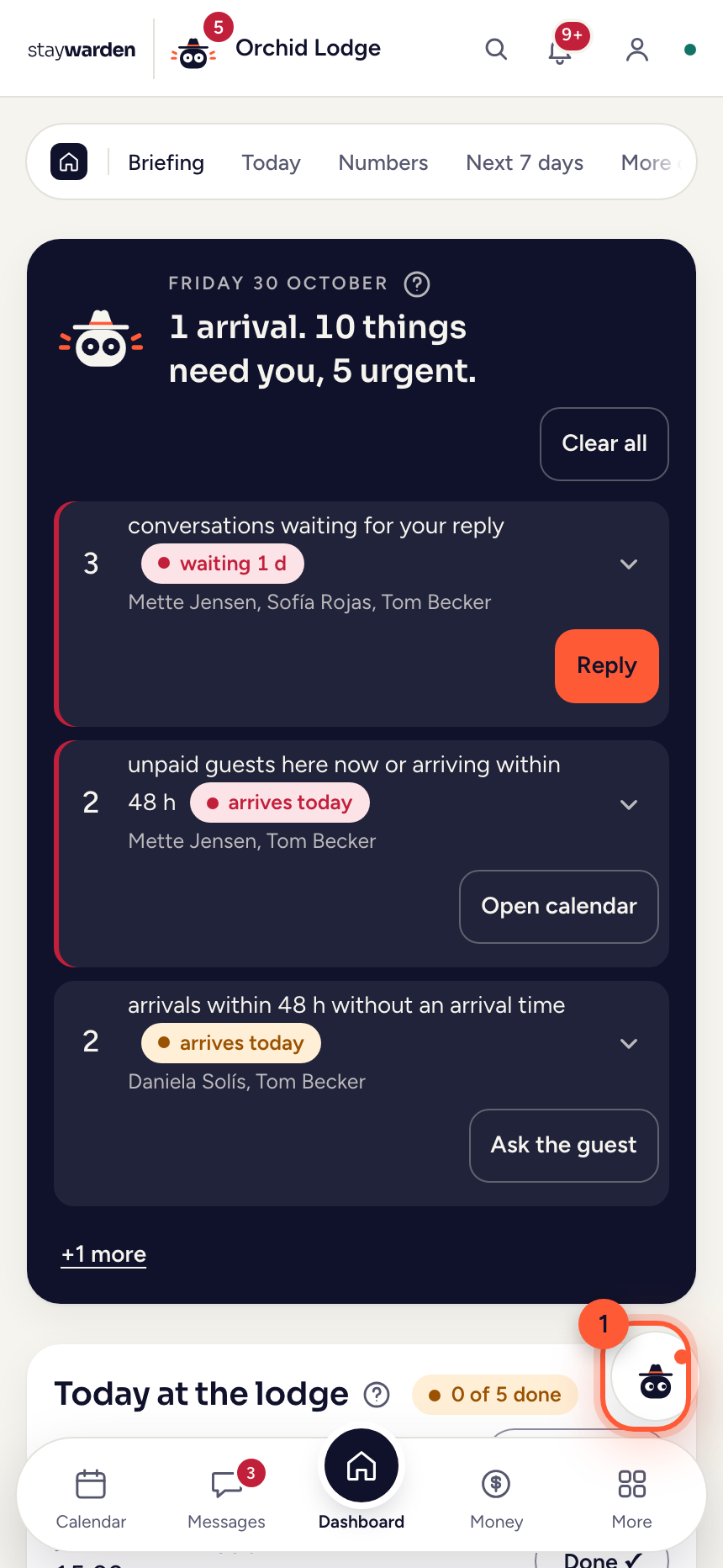
On any tab, tap the Warden in the corner.
WhyIt opens on top of what you are doing, so you never lose your place.
 Step 2
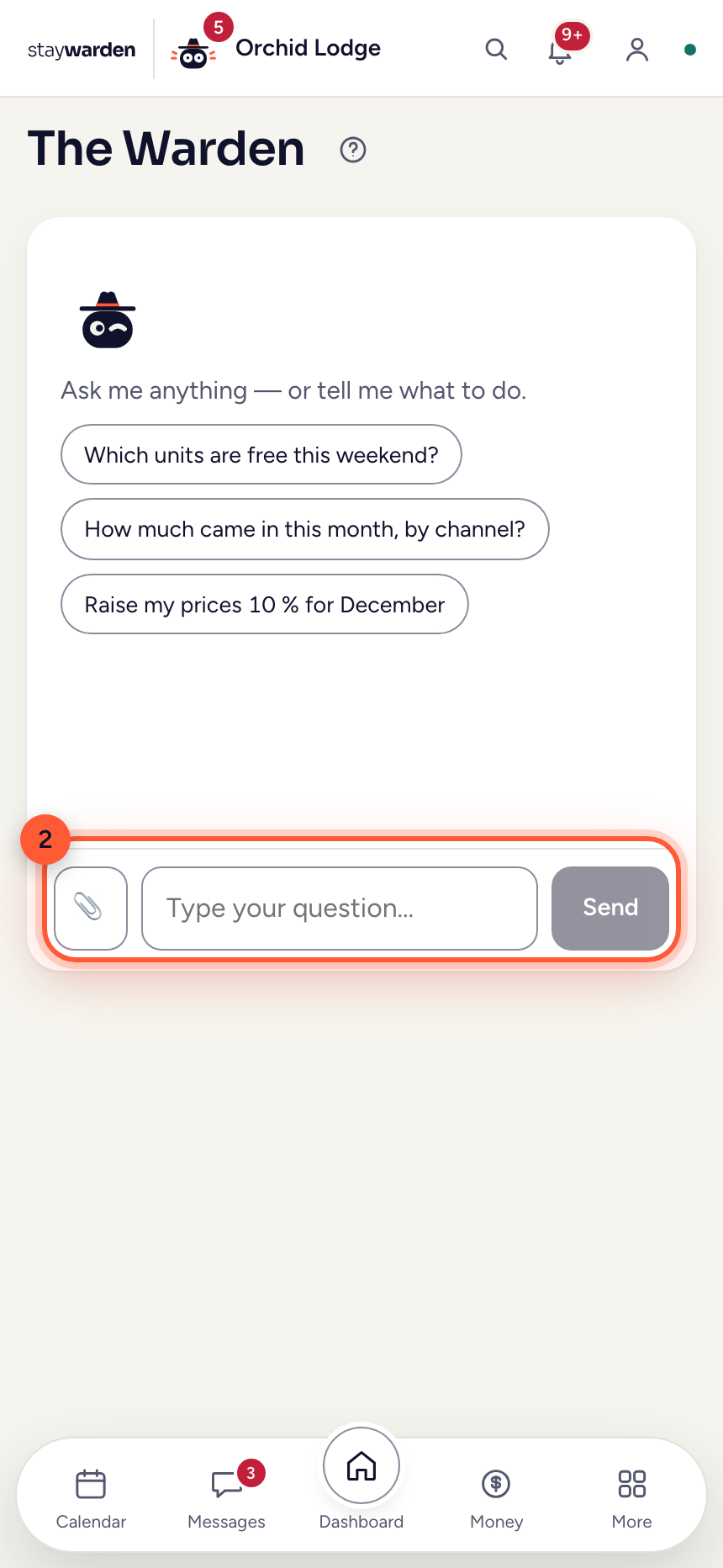
Ask in your own words — “Which cabins are free this weekend?”, “Raise December 10%”, “Move Ana to cabin 2 and mark her paid” — or tap one of its examples. 📎 adds a file.
WhyIt answers with reports and does the work: prices, bookings and payments, guest replies, tasks, invitations and settings. Anything that reaches a guest, a channel or your money comes as a card with before → after — nothing happens until you press Confirm. Invoices he only prepares — you press File yourself.
Still stuck?
Press the Warden button inside the panel and ask in your own words. Or email us — a real person answers within a day.
Write to us